by abduzeedo
I know it's been quite awhile since the last time I published a Pixelmator tutorial, but the wait is over. This weekend I took some time to play around with Pixelmator and I also had the opportunity to test out the new beta version called Tempo. I must say, the new features are really neat. That’s all I can say about that.
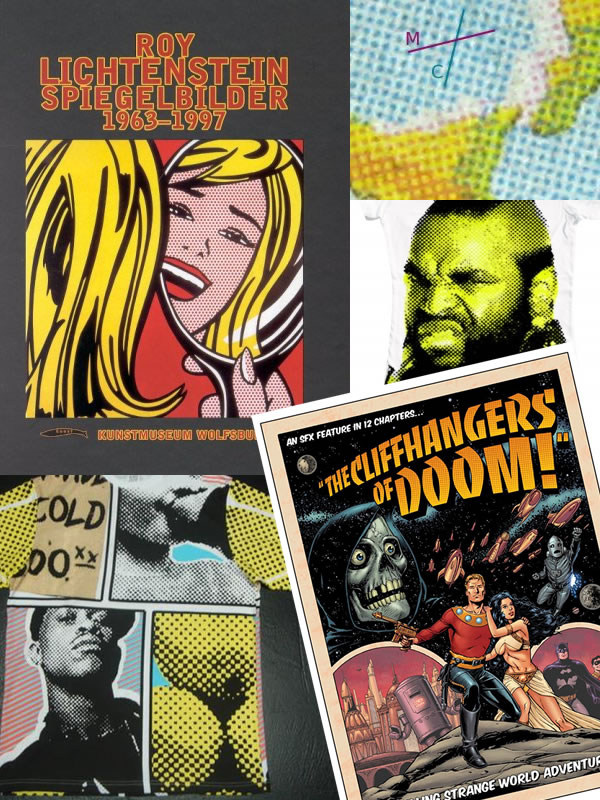
In this tutorial you’ll see how easy it is to create a comic style effect inspired by the stupendous work of Roy Lichtenstein. Pixelmator has very useful and fast Halftone filters that allow us to reproduce this effect from regular photos.
Inspiration
Step 1
Open Pixelmator and create a new document. I used 500x500 pixels. That's just for the first frame of my comic book.
Step 2
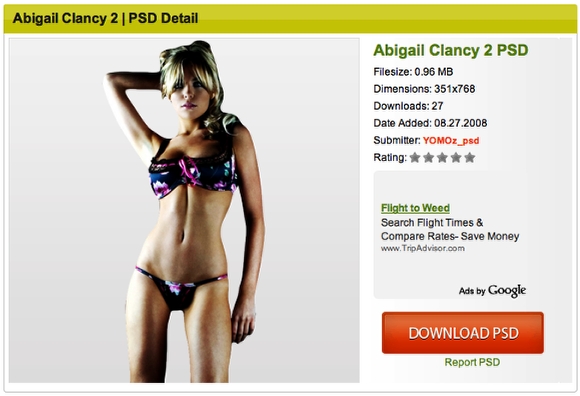
Over at OfficialPsds you can download nice images without a background ready to be used for this project. Download the image below at http://www.officialpsds.com/Abigail-Clancy-2-PSD15018.html.
Step 3
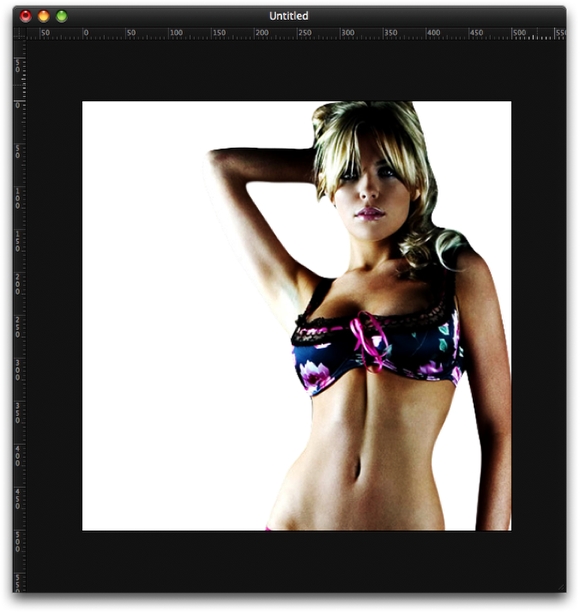
Place the photo in your document. Resize the image a little bit and move the girl to the right side of the document. Use the image below for reference.
Step 4
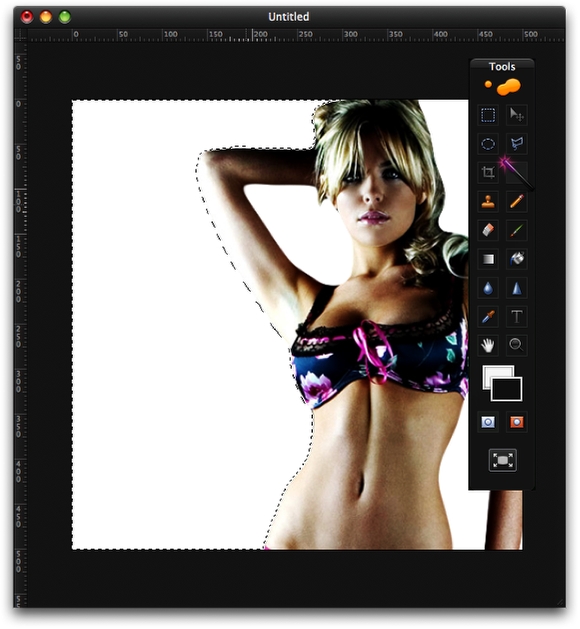
Click on the Magic Wand Tool (W). Create a marquee selection like the image below.
Step 5
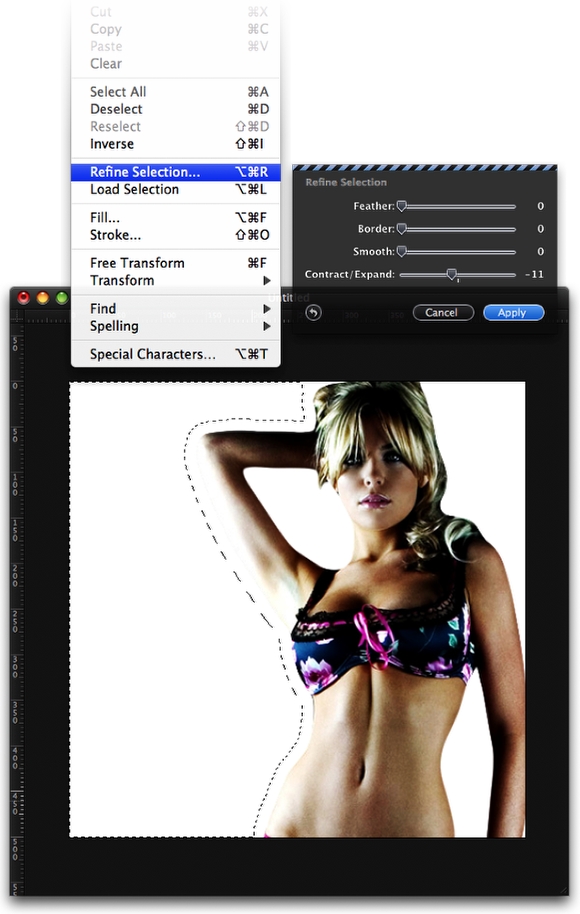
Go to Edit>Refine Selection. Then change the Contraction/Expand to -11.
Step 6
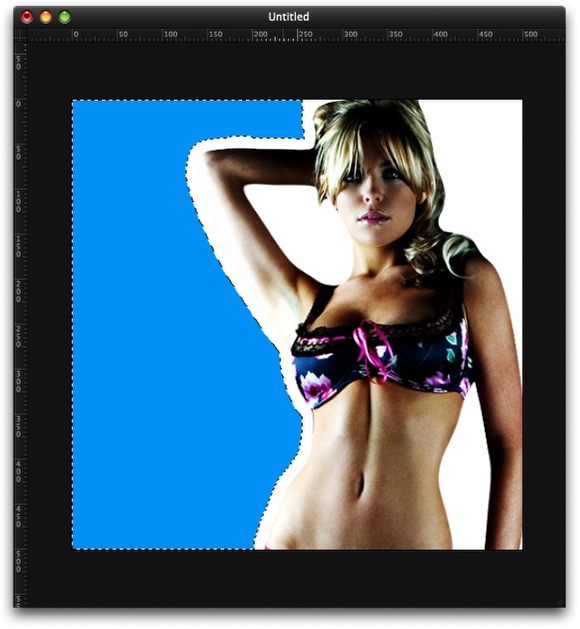
Create a new layer, rename it to "color 1", and fill select the Paint Bucket Tool (N). Use a cyan or very light blue and fill the layer with the blue color.
Step 7
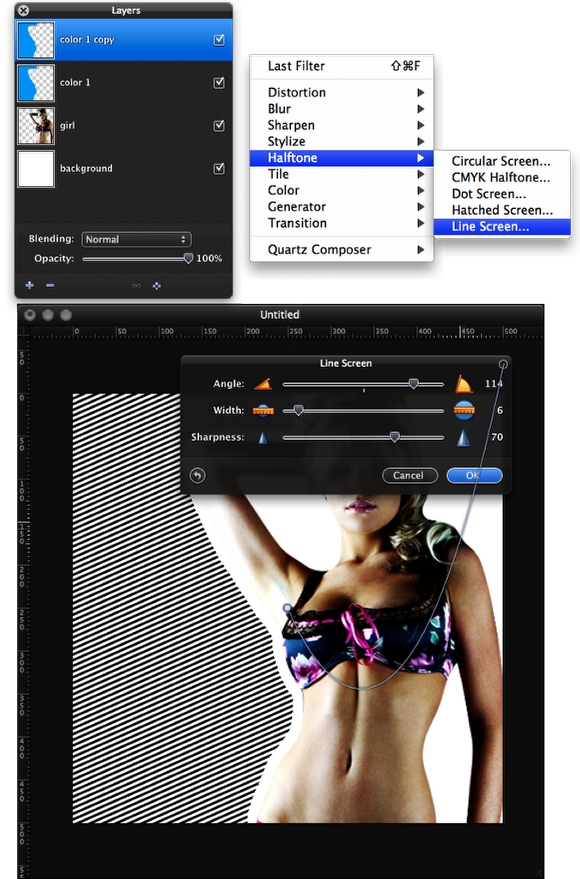
Duplicate the "Color 1" layer and go to Filter>Halftone>Line Screen... Use 114 for the Angle, 6 for the Width, and 70 for the Sharpness. After that, change the blend mode of the layer to Screen.
Step 8
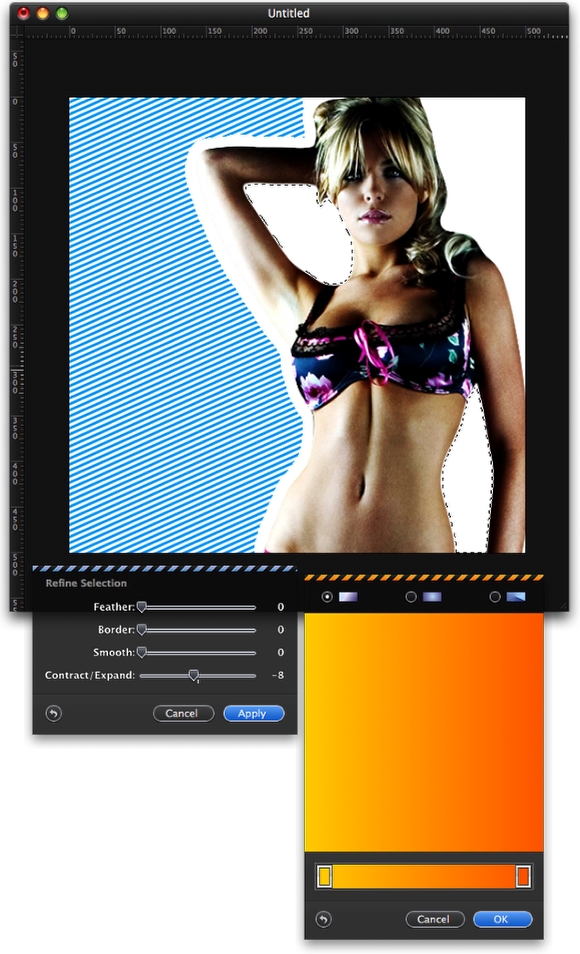
Select the "girl" layer, then with the Magic Wand Tool (W) create 2 marquee selections in the areas between the arms and body. See the image below for reference. Then go to Edit>Refine Selection. Use - 8 for the Contract/Expand. After that, create a new layer and with the Gradient Tool (G) fill the marquee selection with the gradient.
Step 9
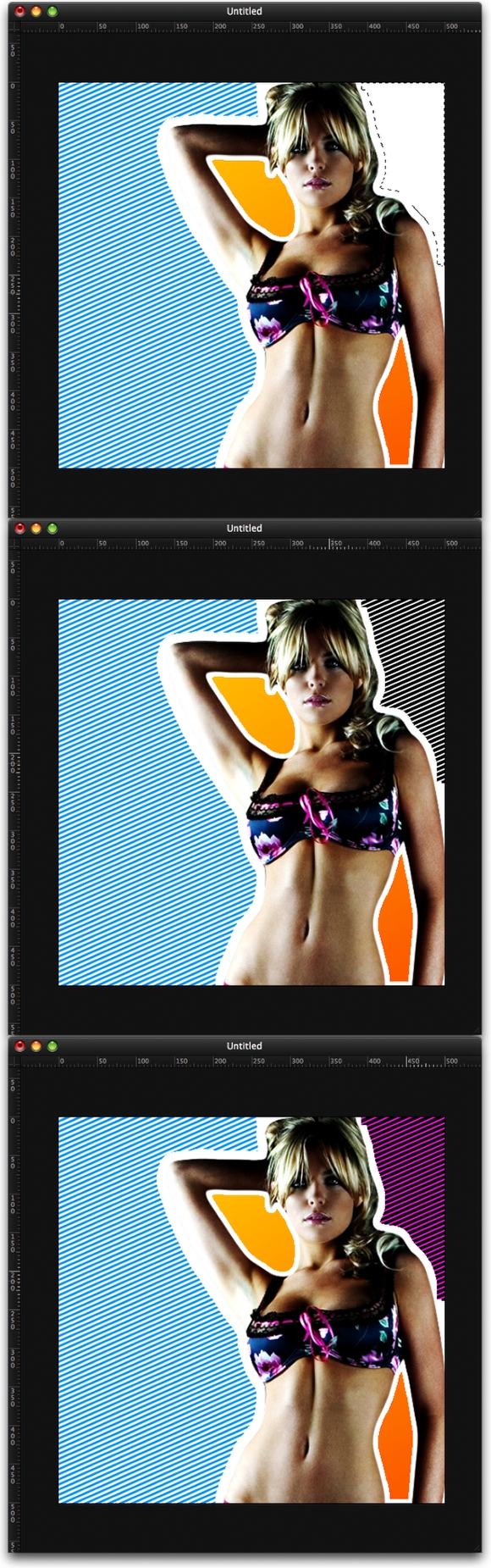
Repeat the same thing you did in the previous step, but now in the top right area. This time fill the new layer with magenta.
Duplicate the magenta layer and go to Filter>Halftone>Line Screen. Then change the Blend Mode of this layer to Multiply.
Step 10
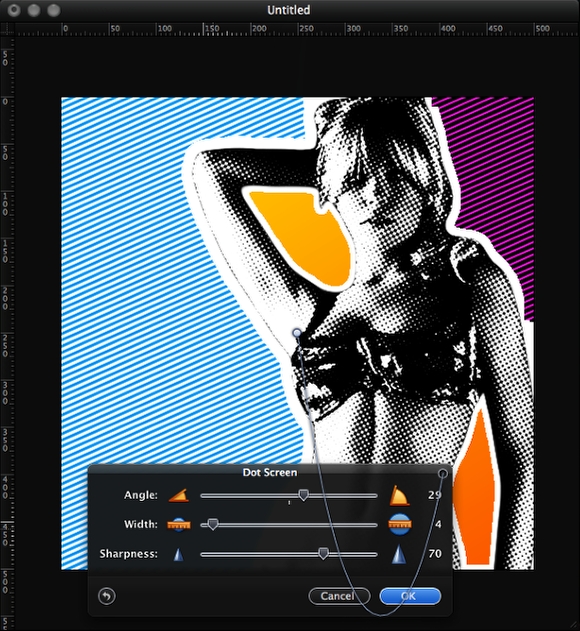
Select the "girl" layer and go to Filter>Halftone>Dot Screen... Use 30 for the Angle, 4 for the Width, and 70 for the Sharpness.
Step 11
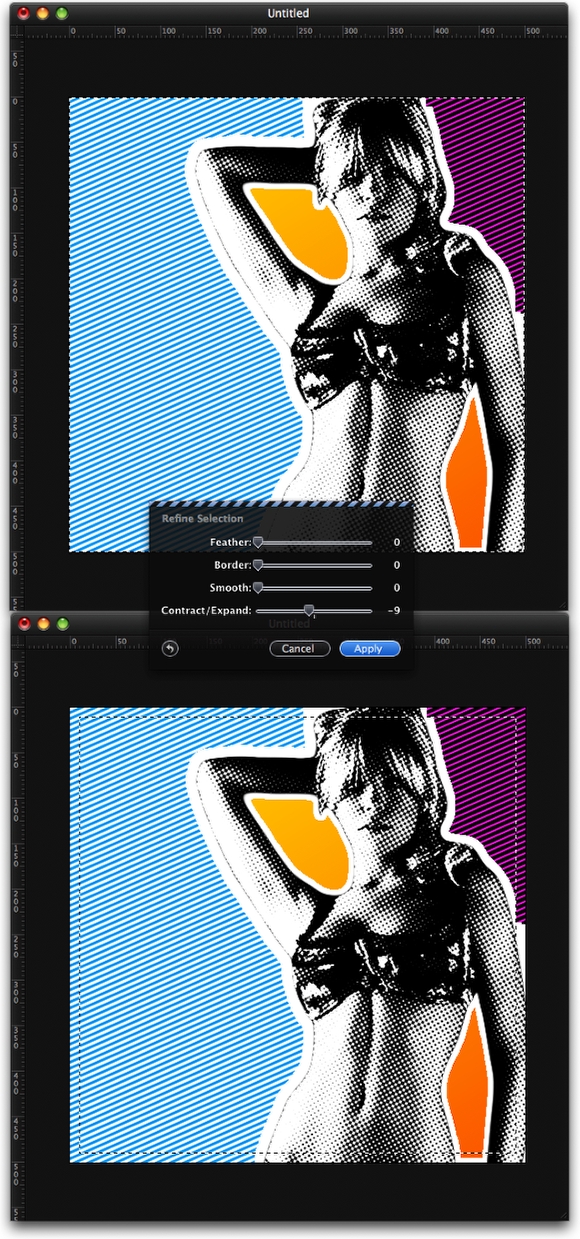
Go to Edit>Select All, then go to Edit>Refine Selection. Use - 9 for the Contract/Expand. Then go to Edit>Inverse.
Step 12
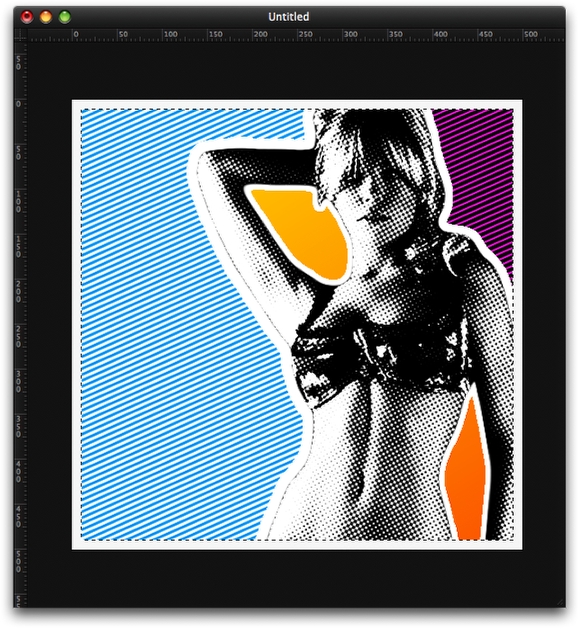
Create a new layer on top of the others, and fill it with white.
Step 13
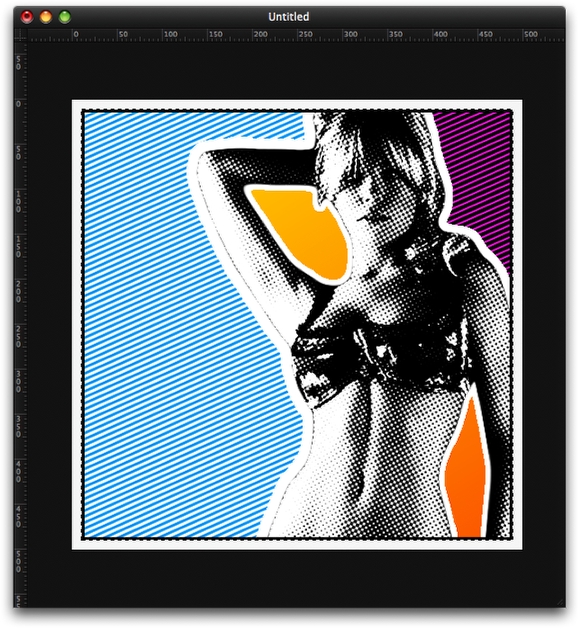
Add a new layer behind the white border layer you have just created. Repeat Step 11. Go to Edit>Select All. Then go to Edit>Refine Selection. Use -14 for the Contract/Expand. After that, select black for the color and go to Edit>Stroke. Use 4 for the width, and select Inside.
Step 14
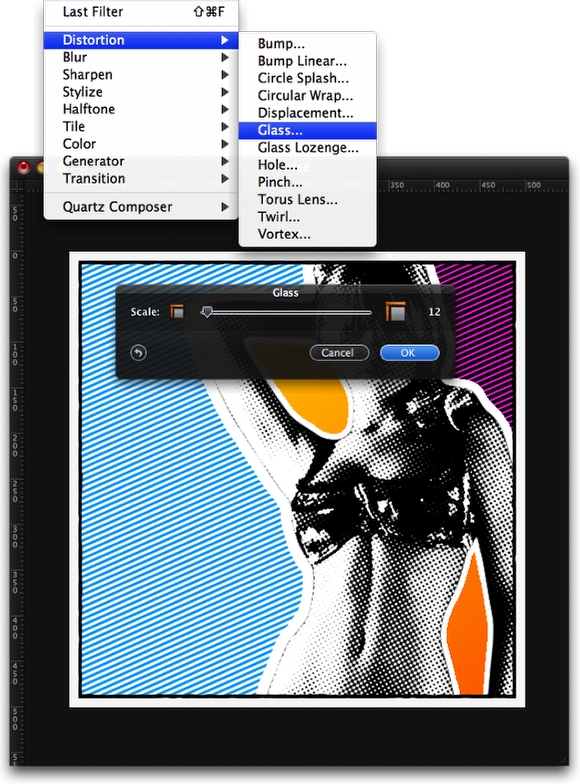
Select the black stroke layer and the white frame layer, then go to Layer>Merge Layers, and rename it to border. After that go to Filter>Distortion>Glass. Use 12 for the Scale. That will create a nice effect on the stroke.
Step 15
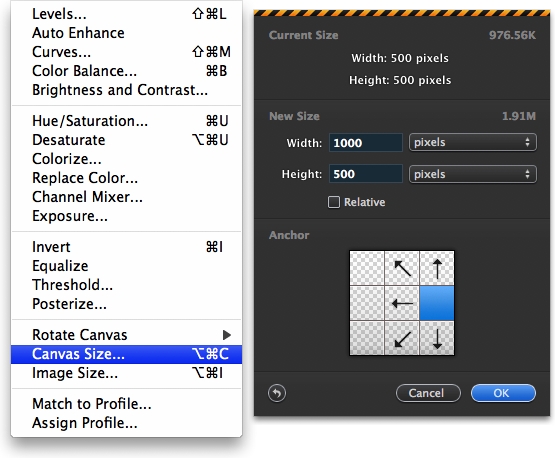
Go to Image>Canvas Size. Change the Width to 1000 pixels, and the anchor to the right part of the canvas.
Step 16
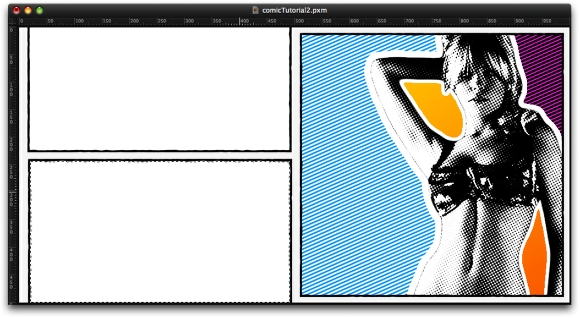
Duplicate the "border" layer twice and position the new layers like the image below. Now you will have a layout like a comic book. After that, with the Magic Wand Tool select the bottom frame.
Step 17
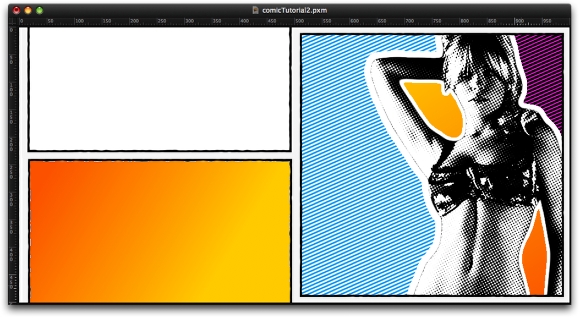
Add a new layer, and with the Gradient Tool (G) fill the selection with a gradient. Use one starting at orange and fading to yellow.
Step 18
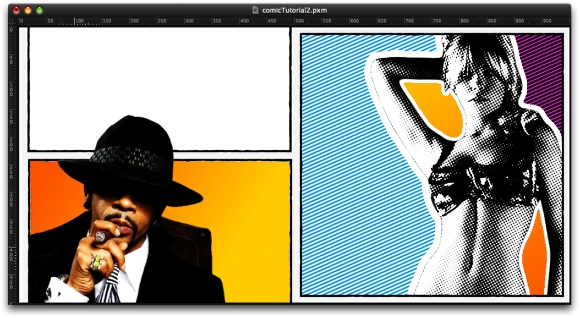
Here I used another image from the OfficialPsd.com site. You can download the image at http://www.officialpsds.com/Katt-Williams-PSD15004.html
Step 19
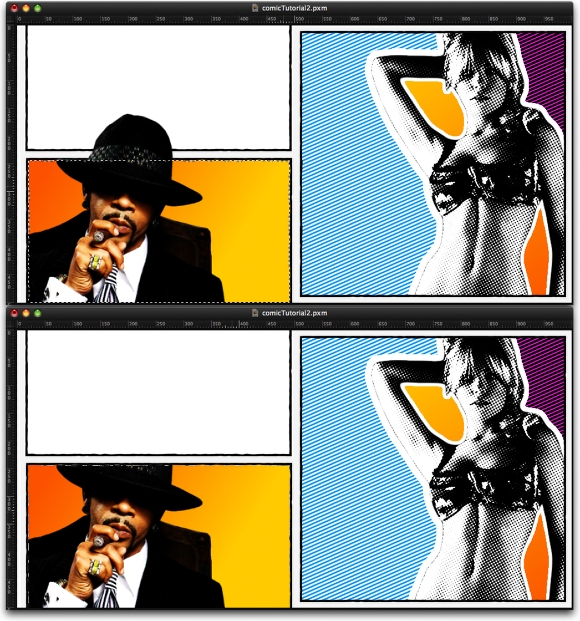
Select the bottom frame again and mask the "Pimp" layer. To do that, just make sure that the "Pimp" layer is selected and go to Image>Add Layer Mask.
Step 20
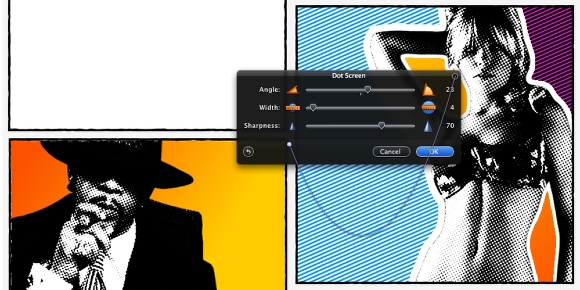
Now let's repeat the Halftone filter again. This time apply it to the "Pimp" layer. Just go to Filter>Halftone>Dot Screen. Use 30 for the Angle, 4 for the Width and 70 for Sharpness.
Step 21
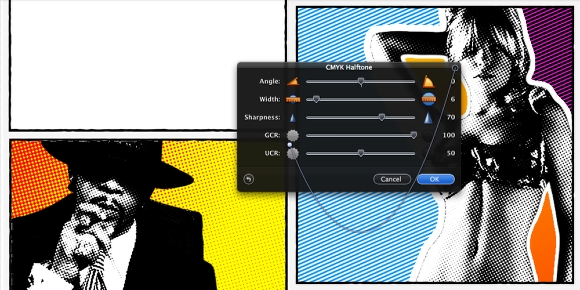
Now select the orange to yellow gradient layer, behind the "Pimp" layer. Go to Filter>Halftone>CMYK Halftone. Change the Width to 6 and the UCR to 50.
Step 22
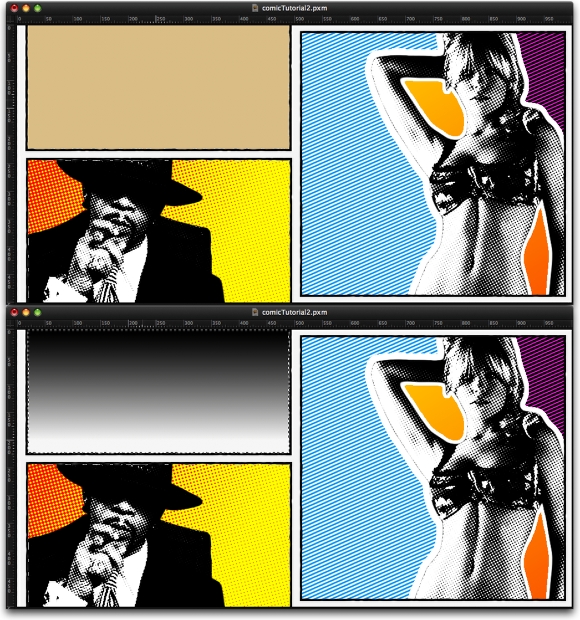
Add a new layer, and create a selection from the top frame layer. You can use either the Magic Wand Tool (W) or the Rectangular Marquee Selection Tool (M). Fill this layer with a beige. After that, select the layer, and add another layer on top of it. Fill this new layer with a black to white gradient.
Step 23
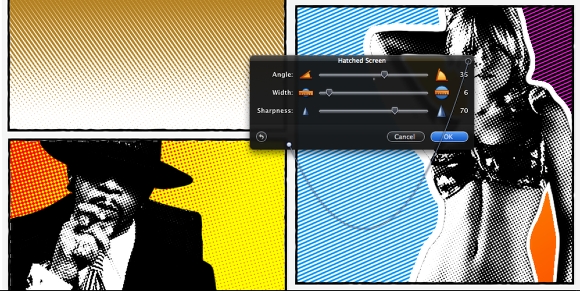
Change the gradient layer Blend Mode to Overlay and the opacity to 70%. Then go to Filter>Halftone>Hatched Screen. Use 35 for the Angle, 6 for the Width, and 75 for the Sharpness.
Step 24
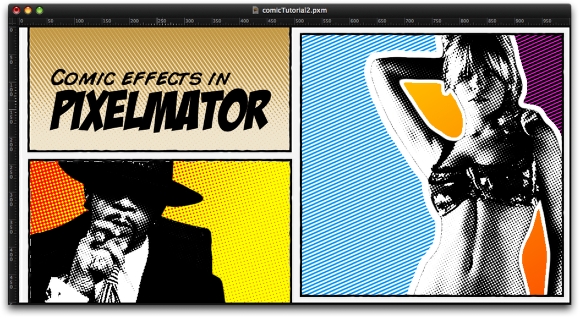
Now just add the title and the other text. You can download pretty cool Comic style fonts at dafont.com. The ones I used in this tutorial are: Badaboom BB for the Pixelmator word and Comic Book for the other text. Also, every time you create a new element like rectangles use the Glass filter. That will give a drawing look to the element.
Conclusion
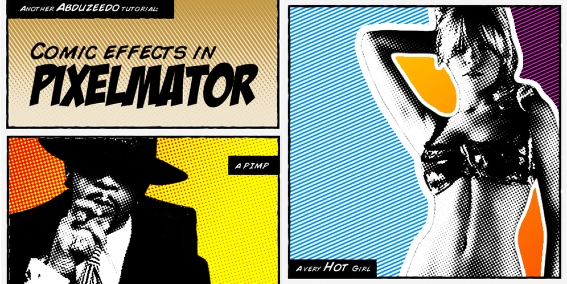
Pixelmator has very powerful Halftone filters that allow us to create super cool comic style effects. Also, they are incredible fast. You can preview the effect in real time which is always helpful. The important thing is to always look for inspiration, try different colors, and as usual play with the tool you are using. Pixelmator is a really cool app with great filters, and it's getting better with each new release.
Video Tutorial
This is just a short video showing how to create this effect. It's not the whole tutorial, but it will help you to execute the written tutorial.
Comic Style Effect in Pixelmator from Fabio Sasso on Vimeo.
Download the Pixelmator File
Click here to download the Pixelmator file for this tutorial.