Girl in Tempo Tutorial - 1 Copy Pixelmator GivewayListThumbs

Girl in Tempo Tutorial - 1 Copy Pixelmator Giveway

October 06, 2008

In this tutorial I will show you how I created the Girl in Tempo Image. Tempo in this case is the new version of Pixelmator, which I've been beta testing for a few weeks. The design is a mix of some photos and filters that can be easily and quickly done in Pixelmator.

Also we have another copy of Pixelmator to Giveaway, as usual drop us a comment, and remember, we will only choose Abduzeedo members, so if you are not, click here and create your account. But before we start the tutorial let me announce the winners of the 2 Pixelmator copies from the last giveaway:

  • mani
  • styletime

Step 1

Create a new document in Pixelmator, I used 1920x1200 pixels. Then fill the background layer with black.

Girl in Tempo Tutorial - 1 Copy Pixelmator Giveway

Step 2

For this image I bought a photo from iStockphoto, http://www.istockphoto.com/file_closeup.php?id=6178363. Then with the new Magic Want Tool(W), cut the girl from the background. The coolest thing of the new Magic Wand is that you have a live preview of the selection while you are dragging the tool.

Girl in Tempo Tutorial - 1 Copy Pixelmator Giveway

Step 3

Place the image in the document and create a new layer, beneath the girl's layer. With the Gradient Tool (G) create a rounded gradient, from grey to black. Right like the image below.

Girl in Tempo Tutorial - 1 Copy Pixelmator Giveway

Step 4

Create a new layer and fill it with a gradient again, this time change the Blending to Screen and make it bigger than the other, right in the center of the document, like the image below.

Girl in Tempo Tutorial - 1 Copy Pixelmator Giveway

Step 5

Let's add another gradient, this time from Blue to Black.

Girl in Tempo Tutorial - 1 Copy Pixelmator Giveway

Step 6

Once again, add another layer and fill it with gradient, from grey to black again, and starting from the girl's hand.

Girl in Tempo Tutorial - 1 Copy Pixelmator Giveway

Step 7

Duplicate the girl layer and create a new layer behind the girl. Fill the empty layer with black and select the girl and the black layer. Click with right button of the mouse and select Merge Layers. After that go to Filter>Blur>Gaussian Blur. Use 1 for the Radius. Also change the Blending to Color Dodge.

Girl in Tempo Tutorial - 1 Copy Pixelmator Giveway

Step 8

Go to Filter>Distortion>Circle Splash. Use 140 for the Radius and move the controller like the image below.

Girl in Tempo Tutorial - 1 Copy Pixelmator Giveway

Step 9

Repeat the Step 7 again and then go to Filter>Blur>Zoom Blur. Use 34 for the amount. Move the controller to change the effect, try different positions or just folow the image below.

Girl in Tempo Tutorial - 1 Copy Pixelmator Giveway

Step 10

Select the girl layer and duplicate it again. After go Image>Desaturate. Then go to Image>Brightness and Contrast. Increase the Brightness and Contrast. I used 11 and 10.

Girl in Tempo Tutorial - 1 Copy Pixelmator Giveway

Step 11

Select and duplicate the girl's layer again, put this new one in front of the black and white girl layer and change the Blending to Overlay. Then go to Filter>Blur>Gaussian Blur. Use 10 for the Radius.

Girl in Tempo Tutorial - 1 Copy Pixelmator Giveway

Step 12

Now let's add some elements to the design. I took some photos of clouds to use in some designs, you can download them here. Open the cloud's image. and first go to Image>Desaturate, then go to Image>Brightness and Contrast . Reduce the Brightness and increase the Contrast until you get a full black background.

Girl in Tempo Tutorial - 1 Copy Pixelmator Giveway

Step 13

Place the clouds' image in the document and change the Blending to Screen. Make the clouds much smaller.

Girl in Tempo Tutorial - 1 Copy Pixelmator Giveway

Step 14

Add more clouds repeating the steps 12 and 13. Create some clouds behind the girl as well.

Girl in Tempo Tutorial - 1 Copy Pixelmator Giveway

Step 15

Create a new layer on top of the others and fill it with black. Then change the Blendings to Color Dodge and go to Filter>Generator>Sunbeams. Move the controller to the hand of the woman and use the values of the image below. Right after that go to Filter>Blur>Gaussian Blur. To make the rays a bit shiner, go to Image>Levels, then increase the White to 173.

Girl in Tempo Tutorial - 1 Copy Pixelmator Giveway

Step 16

Select the Brush Tool (B) and white for the color. Pick a very soft brush and paint the layer right in the hand. That will create a nice light effect.

Girl in Tempo Tutorial - 1 Copy Pixelmator Giveway

Step 17

Go to Filter>Blur>Gaussian Blur and use 3 for the Radius. That's just to make the lights a bit smoohter.

Girl in Tempo Tutorial - 1 Copy Pixelmator Giveway

Step 18

Lets keep adding more elements, for the stars I used an image I found online, you can check it out at http://www.aavso.org/observing/programs/hen/archive/050410-dss-finder.jpg. Then just place the image in the document and change the Blending to Color Dodge. That will make the stars glow ;) also if you want to you can add a bit of Gaussian Blur.

Girl in Tempo Tutorial - 1 Copy Pixelmator Giveway

Step 19

Here let's use an image I created in Cinema 4D. It's like an explosion and you can download the image here. Then place it in the document and with the Elliptical Marquee Tool (Y), create an elliptical selection. Then go to Edit>Inverse and then go to Edit>Refine Selection. Use 200 for the Feather. After that go to Filter>Blur>Gaussian Blur. Use 7 for the Radius. That will create a sort of Depth of Field effect.
Girl in Tempo Tutorial - 1 Copy Pixelmator Giveway

Step 20

Change the Blending to Hard Light then go to Filter>Blur>Zoom Blur. Use 7 for the Ammount.

Girl in Tempo Tutorial - 1 Copy Pixelmator Giveway

Step 21

The last step is just add another image to the composition. I used a smoke image that I got online at http://www.sensitivelight.com/coloured_smoke0D0T9227.jpg. But you can use other images. So I just placed it in front of the other layers and changed the Blending to Color Dodge. Also resize and rotate a the layer, use the image below for reference.

Girl in Tempo Tutorial - 1 Copy Pixelmator Giveway

Conclusion

In this tutorial we used some of the cool new features in Pixelmator like the new Magic Want Tool. Also we used the color adjustment features and of course some really good and useful filters. I think Pixelmator is evolving and has a great potential. You can create all sorts of images and it's easy to learn. Besides, if you are a Mac user and your budget is limited, Pixelmator will be the best tool for you.

Girl in Tempo Tutorial - 1 Copy Pixelmator Giveway
Click on the image for Full Preview.

Different Versions

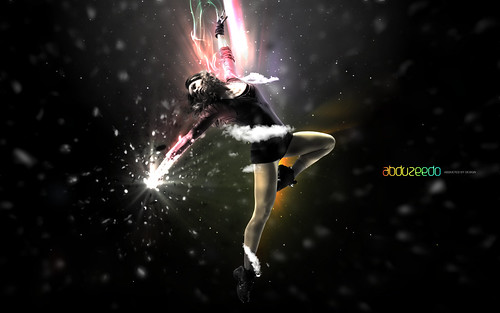
You can try different colors as well, below I did 2 variations of the same design, one inspired by the new depthCore chapter called NOIR, all in black and white.

Girl inspired by NOIR

Girl in Tempo

Download the Pixelmator File

Click here to download the Pixelmator file used for this tutorial.

About the author

User picture

My name is Fabio Sasso, I'm a graphic/web designer from Porto Alegre, Brazil and I'm the founder of Abduzeedo. I hope we can share lots of information, tips, and ideas through Abduzeedo. Also you can follow me on Twitter or my personal site at http://fabiosasso.com.

Sponsored Links:

More content from:

Help us to share this!

94 Comments

Campbell71110/06/2008

Nice tut as alway :)
look forward to doing it

giackop10/06/2008

very cool result.. pixelmator seems cool.. i will try it..

http://www.giackop.com

Daniel10/06/2008

Wow, that's really cool. I've seen the outcomes on your flickr-page.
Didn't knew they were made in Pixelmator. Too bad I don't have that software.

amfis10/06/2008

A simple question: how to get black MAC OS X theme seen in screenshots?

fcuk10/06/2008

Like the creative workflow. I'd love to create in Pixelmator.

A Green Stripe ...10/06/2008

Your wallpapers are great. i love them. I want to do the same in Pixelmator

Spyce10/06/2008

If only I had a Mac.. I would love to be able to create these designs [in Pixelmator]. Oh well, I'm working my way up and until then... I have Photoshop which is just as great; I don't know how I ever got along without it.

rayben10/06/2008

You guys made me sign up :)
Pixelmator is awesome! I would love to own a copy to do some dope graphics…

decanagarosalie10/06/2008

Awesome tut! The output is brilliant. Would love to try it on Tempo.

relando ronato10/06/2008

very very nice tutorial

persechini10/06/2008

that would be a nice addition

Wyath10/06/2008

oh..very cool, but..there's not this tutorial in photoshop? :S:S

Anonymous10/06/2008

Awesome tutorial! I downloaded your PXM file for Pixelmator though but I can't open it on Pixelmator. And for some reason, it says the file is 193MB once it is extracted. Anyway, thanks again for the tutorial! :D

leocda10/06/2008

Not bad.

-----------------------------------------------
http://picturetopeople.blogspot.com
Get Inside Computer Graphics

Gafroninja10/06/2008

Do they support vectors now?

Brukhar10/06/2008

Nice one. :)

Mr Kuzio10/06/2008

Oh yeah!

It's GREAT!

Romes10/06/2008

Pixelmator looks like a very cool new toy to play around with, i like the tut as well, pretty nifty.

ravishingtulip10/06/2008

awesome. please pick me!

Arnovw10/06/2008

Uuuuuh i want i want i want pleeaasee

Trino10/06/2008

Looks pretty good!

JAE. CALI FRESH kREW10/06/2008

very nice i like it keep it up

Ale10/06/2008

I wanna be a Pixelmator! Choose me!

Johnson Koh10/06/2008

This is fantastic!
Seems easy to achieve great effects with Pixelmator.
Thanks for the introduction!

cjs10/06/2008

Great Tutorial. Can't wait to try it.

Sweet_boy103010/06/2008

Oh!! Creative!! I like it!!
Tutorial for PS!!! Welcome to www.dohavn.net

erhilse10/06/2008

I would like to look forward to doing this tutorial...SO PLEASE give me the free copy!

Constantin Potorac10/06/2008

Wow Fabio... This is exactly what I love to create. Thank you, I love you :))

devlindonnelly10/06/2008

Great tutorial, cool look.

Devlin Donnelly
www.devlindonnelly.com

abduzeedo10/06/2008

Thanks a lot for the comments... I think I will write the tutorial for photoshop as well. The idea and filters will be very similar.... but it's a good idea. I was thinking in trying to do that in GIMP too.

winchester88310/06/2008

ooooh that looks sweet. i wanna play with it pretty bad

brian.feister10/06/2008

i LOOOVE the circle splash filter! awesome tutorial!

mani10/06/2008

Oh Man..!!! Here we have one more brilliant work and Tutorial !!

I luv to try it !!

and, THANKS for choosing me :) to giveaway the PIXELMATOR copy
Cheers..!!

http://www.dtptutorials.com

VanSparrow10/06/2008

Nice! never have heard of pixel maker but iam sure its just as good as photoshop!

Rob Barrett10/06/2008

Beautiful work! Certainly shows that Photoshop is just another tool, rather than the be all, end all of design!

Graphic & Web Design - Brixton, London

SteveTheGreat10/06/2008

Sweet Tutorial

piku10/06/2008

Thanks for the tutorial Fabio. Keep 'em coming =)

___
Flickr - Twitter - Blog

phil.brangers10/06/2008

Poor college student pleading for software.......

Marcel Muller10/06/2008

Really amazing. Shows the combination of a good software and a good creativity!

Didi-m-o10/06/2008

=)
this is Amazing !
Great tutorials .
thanks .

Baden10/06/2008

I'm loving this program more and more. So many ideas but nothing to use it on.

Danke shon fur die Fotos.

GD: Baden!=D

K3v10/06/2008

Pretty sweet tutorial!
Gotta love Pixelmator! :)

mathtastical10/07/2008

thanks.... great as always....

ardhian.satrya10/07/2008

I found that pixelmator has some powerful effects more than photoshop and it's easier to use. It's the best alternative to photoshop, i think :)

Dermah10/07/2008

I always find tutorials like this completely amazing. When I get time i'm going to learn how to do stuff like this all the time without someone walking me through it. I need more creative juices :D

Machiney10/07/2008

Excellent image. Pixelmator definitely has some interesting uses.

laughmonkey10/07/2008

Just signed up, so far I've seen some great tutorials. Keep up the good work.

Conrad Gorny10/07/2008

Wow that is amazing. You just scroll through and see the amazing progress, this ones trully something. Thanks,

Conrad Gorny
Freelance Graphic Designer
www.conradgorny.com

egray10/07/2008

I really like the effects you created in steps 19-20.

plastic_stress10/07/2008

again a nice tut!

will you feature the tutorial for PS as well? or do i need to win a copy of pixelmator? ;)

mr_whizard10/07/2008

Fabio, u gave me yet another reason to buy a Mac. How i wish they release pixelmator for windows :( Planning to get a mac just for pixelmator and final cut..Awesome tutorial like always.

Skytheo10/07/2008

Nice tut Dude!
I'm new, nice to meet you!

Daniel10/07/2008

I'm going to try this when I have the pixelmator!

Jane10/07/2008

I can't open the fire-.pxm.Help me!

Drudoo10/07/2008

Really nice, i tried with a trial of Pixelmator and it worked good :)
Keep up the good work!

jeff79710/07/2008

awesome tutorial! love the work you do. would love to win the copy of pixelmator ;)

Prabhu Pritam10/07/2008

nice work.... wud love 2 have a copy of pixelmator... guess Tempo wud be great... :)

symbspid10/07/2008

Nice piece of work. From what I have seen it looks like the things you can do with Pixelmator is fairly on par with Photoshop, but it is only a fraction of the price.

Bader Ahmed10/08/2008

Thanks ,

ya it is very cool looking

we are awaiting to see similar Tutorial in PS.

godonholiday10/08/2008

Wow great final image, to be honest I did not know you could do all that without photoshop! haha great tutorial, I'd love a copy to make some vidtutorials of my own. Great work.

____________________
Learn it, pass it on.

Joe10/08/2008

The clouds and smoke look a little "hoakey" — almost as if they are afterthoughts. The rest of the image is excellent. I love the bursts of color and the explosion effect.

ole10/08/2008

What kind of photoshop do you use?
I'm a noob, I know :P I want to buy it :) I'll buy the cs3 but I can buy the cs4 at the time :P

Ps. Nice tut :)

imesa10/09/2008

hi,

great tutorial.. if i get chosen to have pixelmator i'm sure it will help me in future designs..

thanks for the posts..

CornéM10/09/2008

Great! The more I see you guys can do with Pixelmator the more I start thinking of using it.

Thanks for the tut.

Rottn_Johnny10/09/2008

Looks Great!
I've never had the chance to use Pixelmator yet, but from the looks of this I will have to try it.

DCalDesign10/09/2008

Pretty sweet! I would love to give it a try!

In Christ,
DCal Design

pau pau10/12/2008

Is there any way I could see this in photoshop? I don't own a mac.

chris darwin10/12/2008

wow...
pixelmator seems to be a really good tool.
nice tut. THX for sharing.

Chris

fifty_four10/13/2008

I can this not open!

mchigt10/14/2008

I can this not open!
I have pixelmator version 1.2.3
Help me !!

andre_devils10/15/2008

nice tutorial... pixelmator seems so cool, i will try n learn it

toomuchgin10/16/2008

That was a really great tut.

xp110/18/2008

Another great tutorial. Learning loads so keep it up.
Cheers

pcscholar10/22/2008

Filter-distortion Menu ?

bhast210/23/2008

can't open the file
anyway you can fix this

Nidia10/26/2008

I have been experimenting with Pixelmator thanks to you. The only thing that bothers me is that I feel that at a point the program starts to stop responding and becomes slow. The file size also is huge at this point 153MB! Is this because all of the filters applied?

Ancinek12310/30/2008

is it possible to do this in Photoshop?

Torey11/03/2008

Wow. After seeing this tutorial, I've got to go check out Pixelmator....

all4design11/03/2008

Very good lesson. It's amazing.

On this page your maybe download many good lessons and books too. http://all4design.ru

TUBE11/04/2008

Love the lighting!!

imaen2611/05/2008

Keren

Barbara11/05/2008

Amazing effects. Stunning image! You had me at hello ;)

luchie11/07/2008

Loved it!!! worked out really well in photoshop also!

luchie11/07/2008

loved it! works really well on photoshop as well!

zalmyraskin11/17/2008

Wow really nice effect.
You have really changed the way I design.
Thanx tons!
I would absolutely love to check out pixelmator to see if it could replace photoshop for me.
Peace.

bazgrou11/17/2008

the tutorial, and the aplication are very good. i like the app and i would to gt one copy,) but i have a problem with. after few or more minutes i worked in pixelmator it stoped because of an error, it happend few times.any idea why?

da vinci11/27/2008

Really nice work i love it..

keep it up dude..

Paulo Rafael02/26/2009

Puxa, matou à pau... Parabéns gaucho, é bom ver gente da terra com tanta qualidade.

tikiutaitikra04/21/2009

great design.
I would love to have this program, but I could not afford it yet ;(

Ricio378505/29/2009

Dude..thats awesome!!! Money's a little tight, but I'll get the Demo for now...

sid_waseem08/01/2009

Hi Guyz,

Its a great tutorial, i have tried and created the one.

Here is my work in photoshop, Please do rate it.

http://sites.google.com/site/crazydesignsproject/

Stefy10/18/2009

I don't know why but I can't use my magic wand tool and when i do, it doesn't remove anything.. I'm confused.. am i doing something wrong? I'm trying to use one of my own pictures.
I love this tutorial and i really wanna be able to do it but it's just not working :(

Post new comment

The content of this field is kept private and will not be shown publicly.

Icon Ads Wall

  • Openjobs - Oportunidades de Emprego para Profissionais de Talento
  • Zee - Irrezeestível Design Digital
  • Tradd.us - Contextual Translator
  • DesignFlavr, Inspirational Art and Design served daily
  • Signalnoise.com | The art of James White
  • Alberto Seveso - Illustrator
  • Description: Award Winning Portfolio and blog of Web Developer Anthony Woods

Do you want to advertise here?