by abduzeedo
Last year we published a tutorial showing how to create a nice badge in Photoshop and Illustrator. Now we decided to do the same, or similar effect using Pixelmator and its new vector tools. The result is very good and there are some nice techniques to overcome the lack of some more complex shapes.
So in this tutorial we will show you how to create complex shapes in Pixelmator and add round corners to it. After that we will show you how to make it look like an old badge using textures and some basic filters and blending.
Step 1
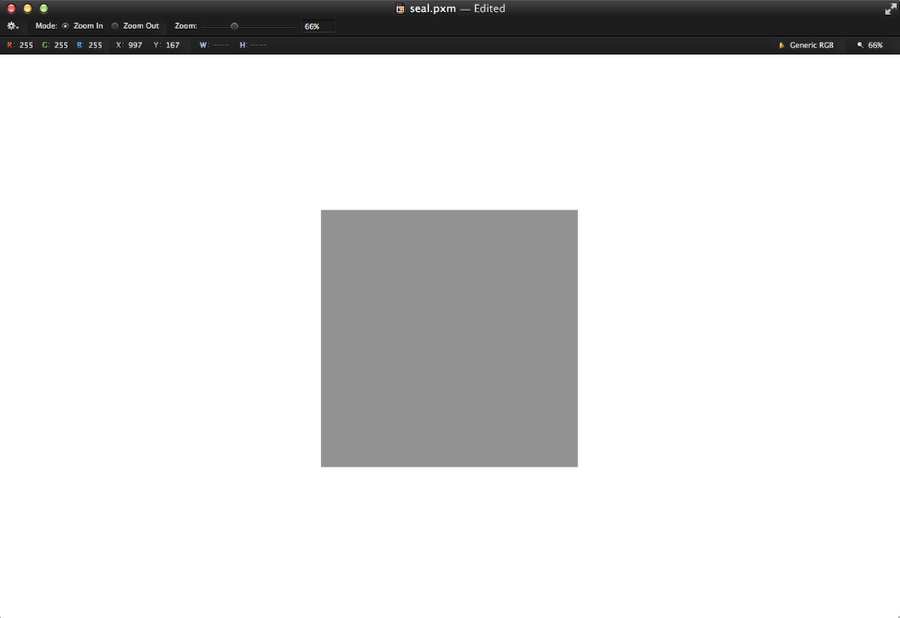
Open Pixelmator and create a new document. I am using 1680x1050 pixels. After that using the new vector tools, select the Rectangle Shape and add a square by holding the shift key.
Step 2
Duplicate the square and rotate it 30º.
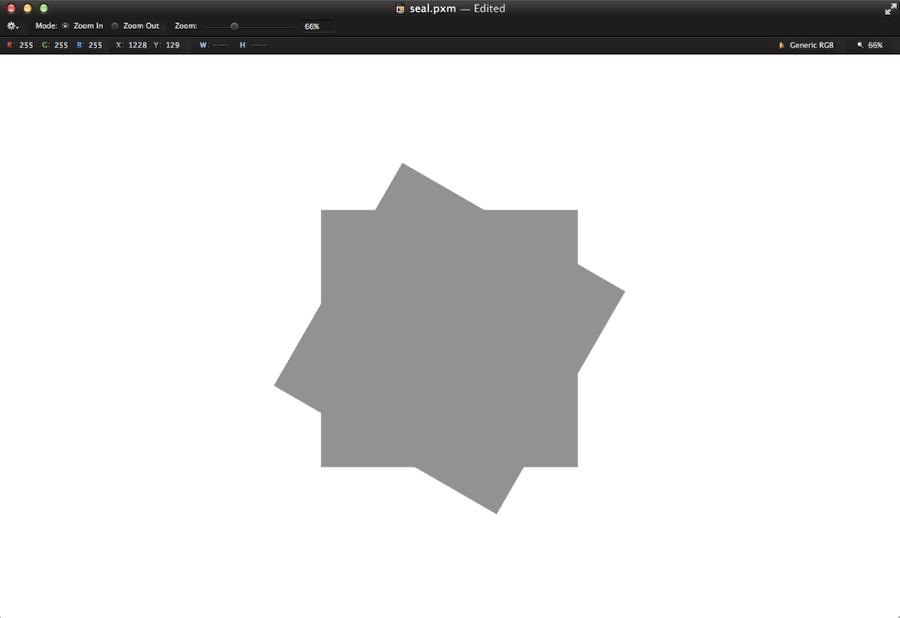
Step 3
Duplicate the rotated square, then go to Edit>Transform>Flip Horizontal. You will have the base of our badge.
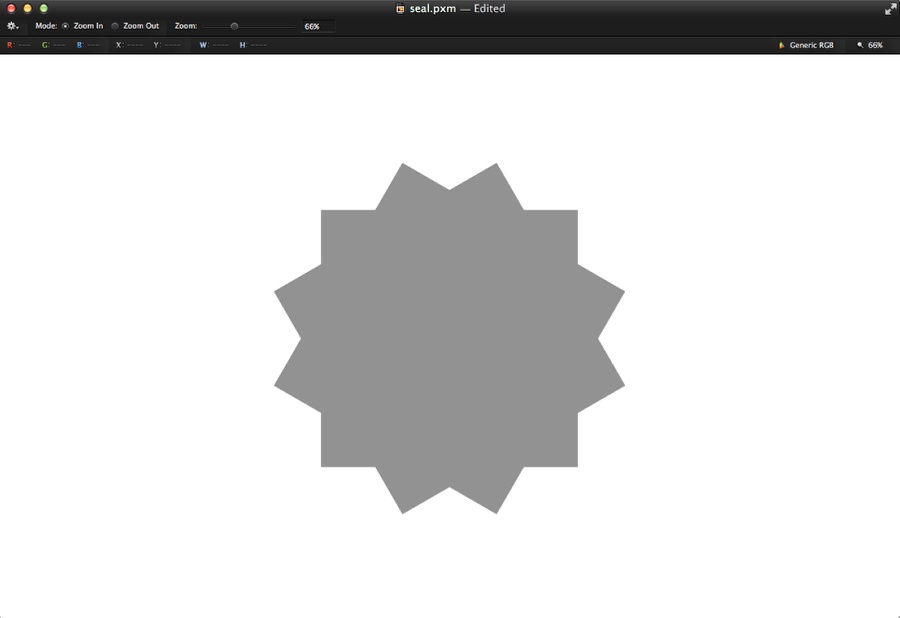
Step 4
Select the 3 squares and merge them into a layer. Layer>Merge Layers. After that go to FIlter>Blur>Gaussian Blur. Use 7 for the radius.
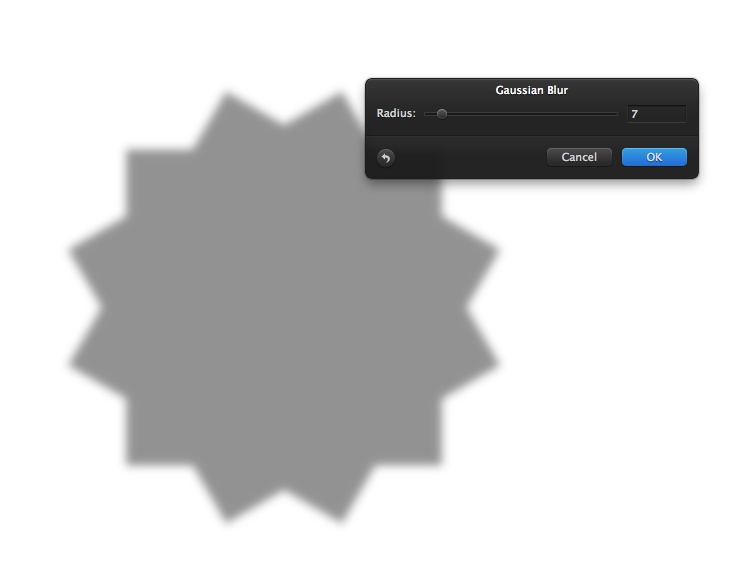
Step 5
Go to Image>Levels. Change the Black to 86%, the grey to 88% and white to 90%. After that you will have a nice shape with rounded corners. If you want it to be more rounded you can use a higher value for the blur in the previous step.
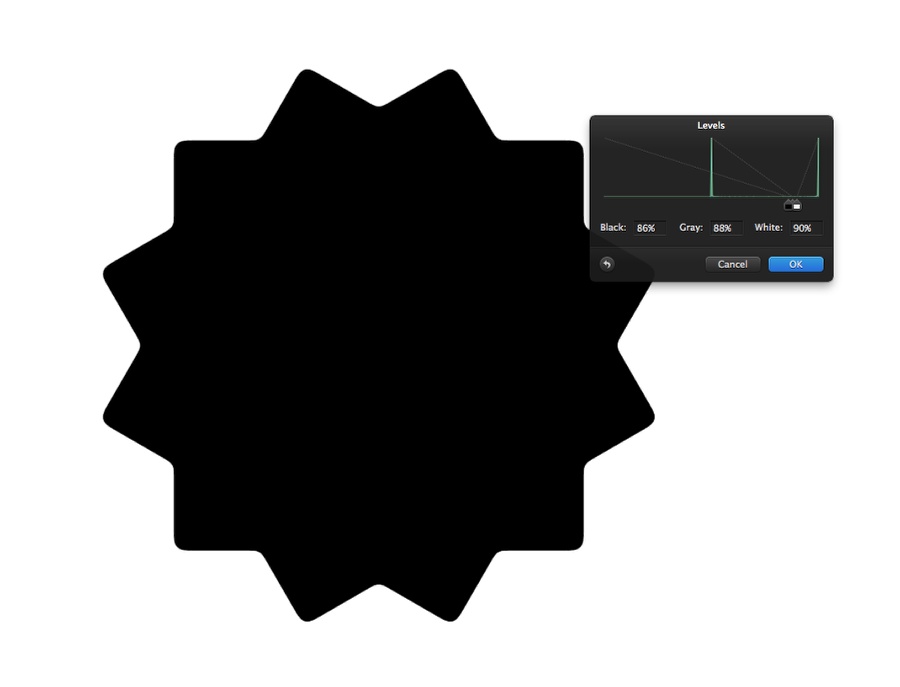
Step 6
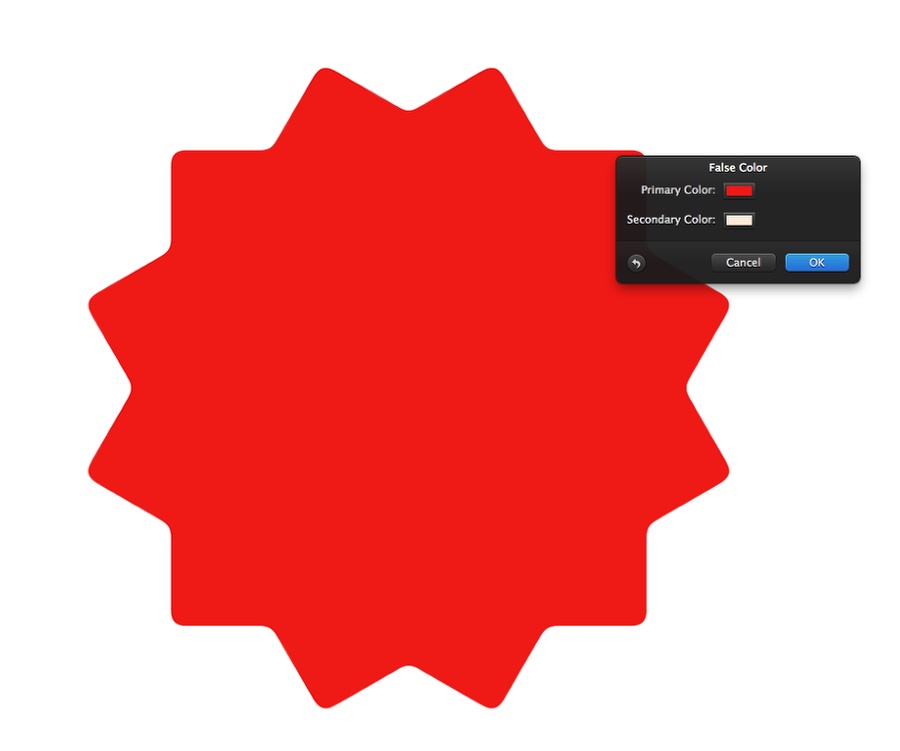
Go to Filter>Color>False Color. Use red for the color.
Step 7
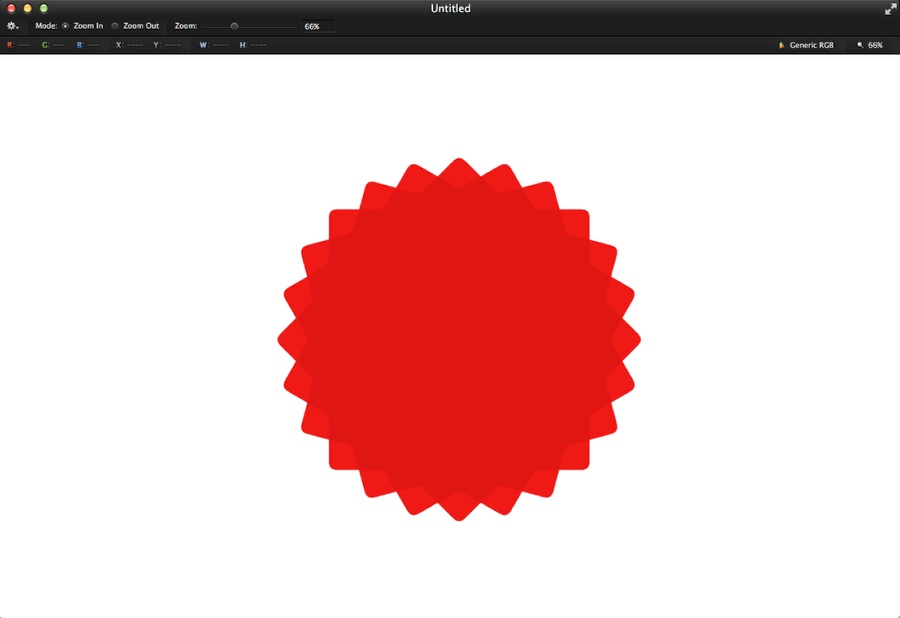
Duplicate the shape and rotate it to have more sides on the badge.
Step 8
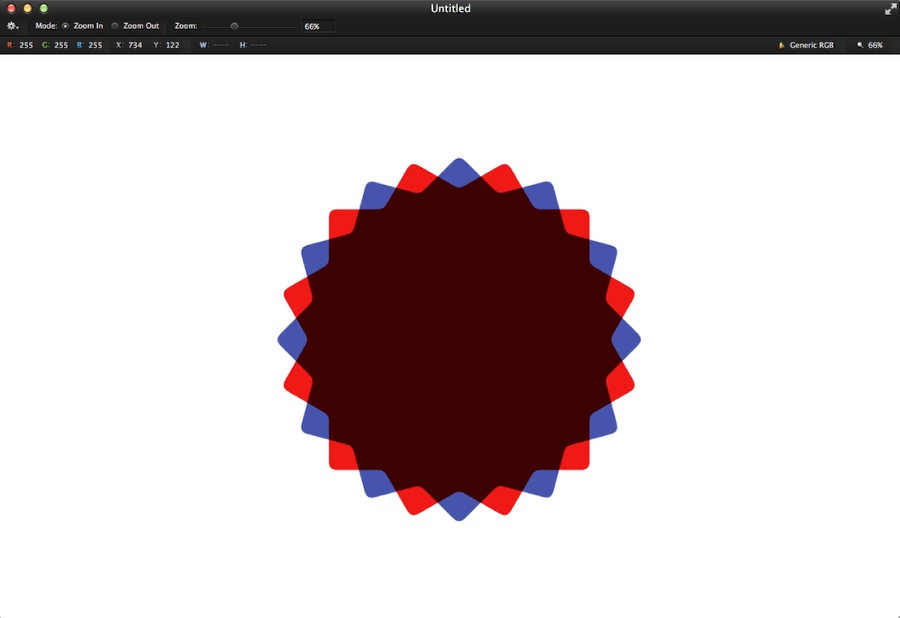
Change the color of one of the layers to blue and change the Blending to Multiply.
Step 9
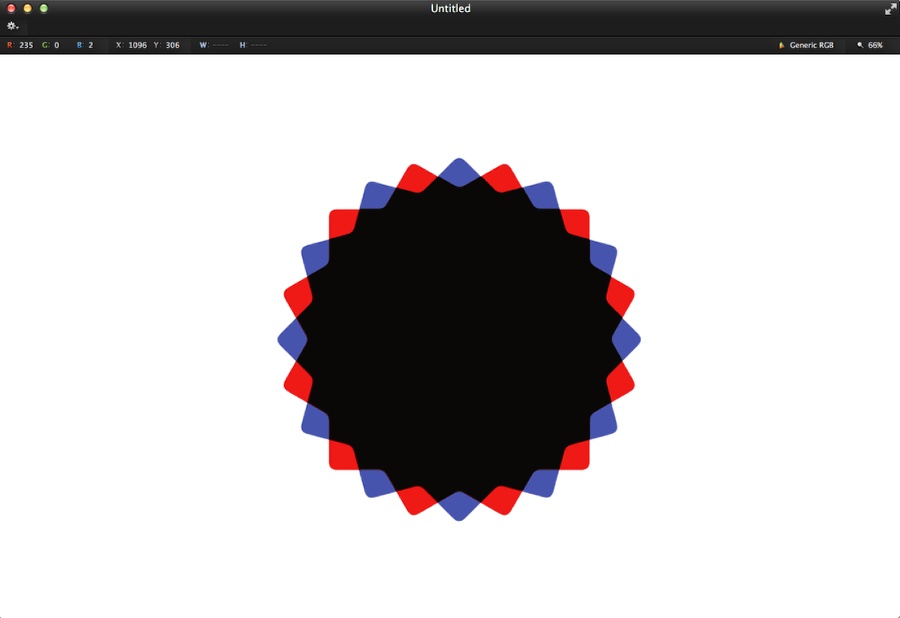
Select both layers and merge them. Then with the Magic Wand Tool (W) select the center area. After that use black for the false color.
Step 10
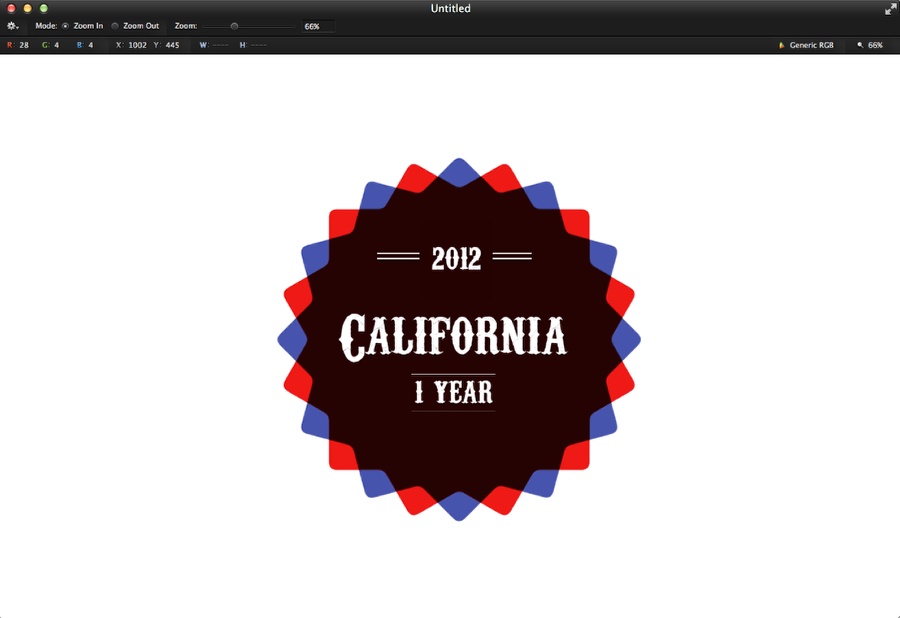
Now let's start adding some text. I used a font called Carnevalee Freakshow for the font. Also used the Rectangle Shape Tool to add some other elements.
Step 11
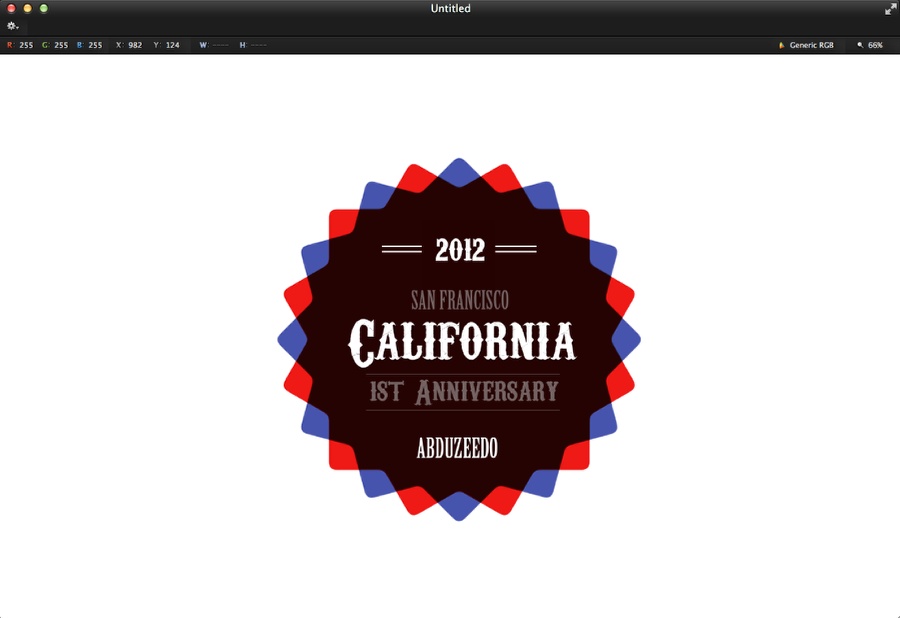
I added more text using another font, called Birch Std for the words San Francisco and Abduzeedo. Also change the opacity of some text to 30% white.
Step 12
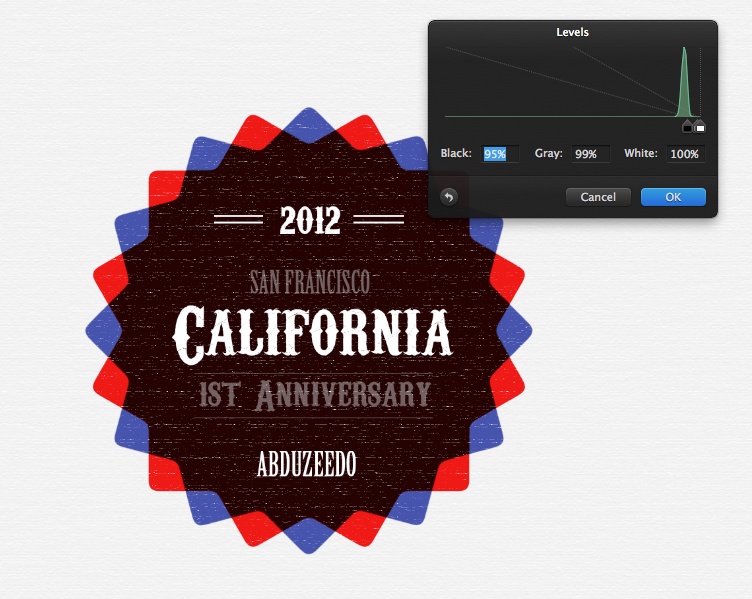
Let's add some texture. The one I used is from Subpatterns.com and can be found here: http://subtlepatterns.com/patterns/paper.png
Use one layer with it for the background and another on top of the other layers. With the one on top go to Image>Levels. Use 95% for Black, 99% for the Grey and 100% for White. Then change the Blending to Screen and the opacity to 60%.
Step 13
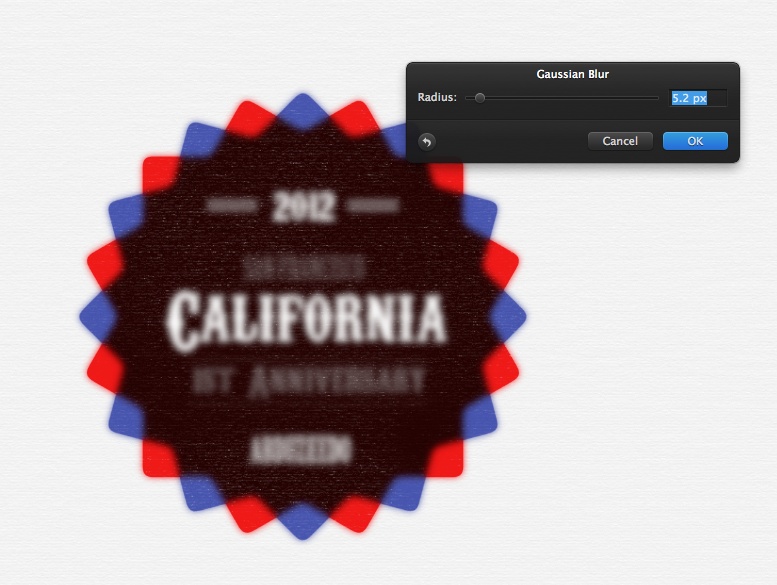
Select the badge with the text layers and duplicate them. After that merge the duplicated layers into one and go to Filter>Blur>Gaussian Blur. Use 5.2px for the Radius.
Step 14
Change the Blending to Hard Light at 60%. You might need to delete a bit of the center area to make the text more visible.

Step 15
Duplicate all layers and merge them again into one. Then go to Image>Desaturate. You can change the opacity of this layer to 60% to make the colors less vibrant or...

Conclusion
You can have the layer in black and white, which is my favorite. So the idea of this tutorial was to show you how to create some more complex shapes using Pixelmator vector tools. You can go much further and add more details, but that now is up to you :)

Conclusion
You can have the layer in black and white, which is my favorite. So the idea of this tutorial was to show you how to create some more complex shapes using Pixelmator vector tools. You can go much further and add more details, but that now is up to you :)