Really cool Eclipse Effect in PhotoshopListThumbs

Really cool Eclipse Effect in Photoshop

June 15, 2008

In this tutorial I will show you how I created the Abduzeedo's footer. Some of the techniques I used here I took from other tutorials and also from another tutorial I wrote some time ago for PSDtuts Mix Cool Retro Curves Into Your Photographs. Besides, the design is inspired by the amazing work of James White, so I highly recommend you to check his work out.

As I said before I used some techniques we saw before, from other tutorials. But one of the ideas of this tutorial is learn how to apply what we have learned from this tutorials, and create different effect.

Step 1

Open Photoshop and create a new document. I used for this tutorial the wallpaper size of 1900x1200 pixels. Right after that fill the background layer with black and with the Rectangular Marquee Tool(M) create a selection like the image below.

Amazing Eclipse Effect like Abduzeedo's footer

Step 2 - Brush

This is exactly what we saw on the other tutorial I wrote, there are just a few differences. But let's repeat the step here.

1 - Add a new layer and fill it with gray.
2 - Go to Edit>Define Brush Preset...
3 - Rename your brush to "Rec Brush".

Amazing Eclipse Effect like Abduzeedo's footer

Step 3

Now let's edit our brush, to do that go to the Brush Engine, Window>Brushes (F5). Basically we will use the Shape Dynamics, Scattering, Color Dynamics and Other Dynamics to create the efect we want. Just follow the image below for reference.

Amazing Eclipse Effect like Abduzeedo's footer

Step 4

With our custom brush let's create the effect, add a layer and paint some rectangles. After that let's add some Layer Style. Go to Layer>Layer Style>Drop Shadow. Use Color Burn for the Blend Mode, 80% Opacity, 120º Angle, 5px Distance, and 10px Size.

The last thing here is to repeat this step 2 more times. Like create another layer, paint some brush and add the Layer Style.

Amazing Eclipse Effect like Abduzeedo's footer

Step 5

Now let's resize the layer, just horizontally. You can go to Edit>Transform>Scale, or just press CMD+T(mac) or CRTL+T(pc). After that go to Filter>Blur>Motion Blur. Use 90º for the angle and 155 pixels for the distance.

Amazing Eclipse Effect like Abduzeedo's footer

Step 6

Select the Ellipse Tool (U) and create a big ellipse, it will be the dark planet. Use the image below for reference.

Amazing Eclipse Effect like Abduzeedo's footer

Step 7

Now let's make some adjustments. Let use Layer Masks to delete some parts of the image and to make others darker. So first select the ellipse layer and go to Layer>Layer Mask>Reveal All. Then select the Brush Tool(B) and big brush, the regular one rounded with 200 pixels, hardness 0%, and the color black. Now just delete some parts of the ellipse (1-4). After that select the rectangles and repeat add a layer mask exactly like we did before. Again select the brush tool, it will be the same preset as the last usage, this time however, change the opacity to 20% and paint some areas to maks some retangles. (5-11).

Amazing Eclipse Effect like Abduzeedo's footer

Step 8

Here let's add some color, I will use Abduzeedo's color. So go to Layer>New Fill Layer>Gradient. Change the angle to 90%, and scale to 80%. After that just change the Blend Mode to Overlay.

Amazing Eclipse Effect like Abduzeedo's footer

Step 9

Create a new layer and fill it with black, after that go to Filter>Render>Lens Flare, use 100% for the brightness and the 50-300mm zoom for the Lens Type. Change the blend mode to Screen. You will notice that the layer is too bright, there is too much gray. So go to Image>Adjustments>Levels. Then just change the Input Levels to 50, 1, 255.

Amazing Eclipse Effect like Abduzeedo's footer

Step 10

Now let's add a photo from sxc.hu, you can download it here http://www.sxc.hu/photo/986801. Place it in the center of our image. You will have to rotate, and rescale it. Then just change the Blend Mode to Screen too.

After that go to Layer>Layer Mask>Reveal all. Let's repeat the step 7 and delete some parts of the image, do that until you get the result like the image below.

Amazing Eclipse Effect like Abduzeedo's footer

Step 11

Now select the ellipse layer and go to Layer>Layer Style>Outer Glow. Change the Blend Mode to Hard Light, the opacity to 90% and select the Gradient Color. Use the default yellow and change the size to 60px.

Amazing Eclipse Effect like Abduzeedo's footer

Step 12

Create a new layer on top of the others, fill it with black and go to Filter>Texture>Grain. Change the Intensity to 66 and the Contrast to 60. After that change the layer's Blend Mode to Soft Light and 60%. You will notice that the image will get a bit darker.

Amazing Eclipse Effect like Abduzeedo's footer

Step 13

This step is not really necessary but the whole idea is add a bit of texture to the rectangles. So download the texture image from sxc.hu (http://www.sxc.hu/photo/1021346) and place it in the document, right on top of the ellipse layer and beneath the lights. After that reduce its just to make it a bit smaller. Then go to Image>Adjustments>Invert, change the Blend Mode to Overlay and the Opacity to 10%.

Amazing Eclipse Effect like Abduzeedo's footer

Conclusion

There are lots of ways to create this effect, and lots of good tutorials showing how to create that type of eclipse effect, the lines, and the other light effects. But the idea of this tutorial was to mix everything to get a nice result. I hope you like it and now it's all about playing with the tool. ;)
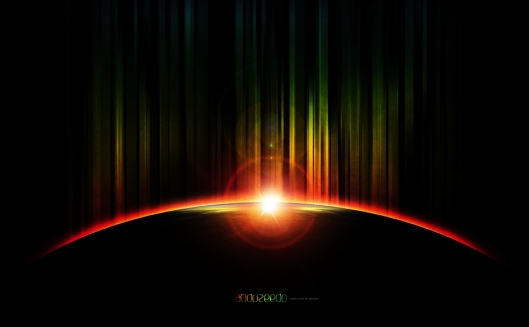
Amazing Eclipse Effect like Abduzeedo's footer
Click on the image for the full preview

Download the PSD file

Click here to download the PSD file.

About the author

My name is Fabio Sasso, I'm a graphic/web designer from Porto Alegre, Brazil and I'm the founder of Abduzeedo. I hope we can share lots of information, tips, and ideas through Abduzeedo. Also you can follow me on Twitter or my personal site at http://fabiosasso.com.

Sponsored Links:

More content from:

Help us to share this!

118 Comments

Silver-Solutions06/16/2008

wow :o another amazing tutorial! that effect is crazy :D
___________________________________________________________________________
www.Silver-Solutions.co.uk - Award Winning Portfolio and Blog of Web Developer Anthony Woods

Bady_qb06/16/2008

come and visit my deviant
and also my flickr

amzing fab! :D

agestone06/16/2008

very nice tutorial

chicoblog06/16/2008

Amazing!
Thanks for the tutorial =)

And the correct Url is:
http://www.abduzeedo.com/files/Abduzeedo_s_footer_design/conclusion_lg.png

Greetings From Chile =)!

xavier06/16/2008

Excellent Fabio!
Crazy effect :.)

Sketchee06/16/2008

That's a cool effect! I wish I didn't do so much work on newsprint, I don't think these effects would hold up on my pubs.

Salva06/16/2008

Amazing!

kailoon06/16/2008

I already give it a try, here is my result.

http://kailoon.com/test/light.jpg

Thanks for the good sharing :)

K3v06/16/2008

Cool effect! :)

Skandar06/16/2008

very nice

Some helpful techniques!

BogDinamita06/16/2008

Man really looking forward to try this one out! Looks awesome

http://www.flickr.com/photos/bogdinamita/

vyntouch06/16/2008

Like the style!

ben06/16/2008

awesome man

Markos06/16/2008

WOW!

Mchilly06/17/2008

Wonderful tutorial like the style

don06/17/2008

Excellent tutorial bro.. nice tips. Thank you

daniel aka milo1306/17/2008

Very nice tutorial and outstanding effect!thanks a lot.

Dybcio06/17/2008

Great Tutorial! But I have one question: in step 13 when you say:

...Then go to Image>Adjustments>Invert, change the ...

for me, it looks like you desaturated this image, because when I do Invert my image become blueish not grey, like yours. Or maybe I'm doing something wrong?

Cheers!

canata104406/18/2008

Excellent tutorial.Thank you!

Web Design06/18/2008

Wow! This is a Great Post!

Anonymous06/19/2008

hi, ur really great, im a big fan of u and your design always inspire me in my works... keep the great works coming...

Thanks and regards....sajay

kyle Steed06/19/2008

Thanks again for a great tutorial. Check out my version over at flickr:

http://flickr.com/photos/kylesteeddesign/2592992233/

Cheers!

Lihoa06/20/2008

Fantastic design!!! Keep going!!!I love it!!

Mike06/23/2008

I dont understand how in step 3 the minimum roundness of your brush is set to 25 but the control is set to off? Can someone please explain this to me? Is this using a pen and tablet?

Thank you so much

shahalam06/24/2008

nice site

Vladux06/28/2008

Nice tutorial, tnks dude for the impiration!!! cheers from Guatemala!

badaui06/30/2008

Opa... olha só amigo!
Primeiramente... parabens pelo TUTO!
perfeito!
soh queria saber uma coisa!
Qual a fonte q vc usa no: ABDUZEEDO???? Igual ao q vc usou do resultado final do tutorial... escrito "ABDUZZEDO"!!!
obrigado desde jah amigo!

Ericia06/30/2008

This is really nice effect!!!

kaistroemer06/30/2008

wow, i searched a long time for a sort of this tutorial. Nice job. Looks really crazy :D

taco07/03/2008

It would be great to have a place where we can download the brush that you use for this and any other specialized PS tutorial to use on Photoshop Elements 5 or 6. Any suggestions?

akshay07/08/2008

After this a real fan of your's, hope for more and more of such tutorials.
Thank you for this

kovilen120707/12/2008

lol, nice tutorial!!

ftrc07/25/2008

look what you have done.

http://super.abril.com.br/imagem/capas/g/g_capa_255.jpg

ask for royalties =]

Diogo07/26/2008

i have a problem creating the brush
i use photoshop elements and i cant find thoso options to create the brush.
Cna you help me PLEASE??!

Bruno L.07/28/2008

Did you saw the last issue of Superinteressante magazine?

Looks like the cover designer of this, visit the Abduzeedo tutorials :D

Cya

phastel07/29/2008

the part where u told the settings of the brush (STEP 3) is kind of confusing, I think there's a part which u got it wrong...

femmy08/01/2008

this is a good tutorial,i am really impressed wit it.one luv from femi from nigeria.

liza08/08/2008

This tutorial is realy amazing, If you realy interested in photoshop so there are number of nice videos tutorial of photoshop on http://codervods.com/Default.aspx?mode=default&category=Adobe%20Photosho...

Thanks

samucaMATOS08/08/2008

cara, teus tuts rocks!
Parabens e grande trabalho.

JJ08/10/2008

olha o resultado do tutorial na capa da Super Interessante.

http://super.abril.com.br/revista/sumario-edicao-255.shtml

I need help08/11/2008

Im stuck at the 4th step..... every time i use the brush instead of gray the rectangles are in all different colors.... How do i make them gray???

Graphics@SBL-photoshop Image Masking |Photo Masking08/18/2008

Really nice work..........

Regards,
GRAPHICS@SBL

TwoFace.08/22/2008

cool cool!

hoboville08/27/2008

I can't get step 11 to work, as in, i can get that thin yellow glow, but not that thicker oragne glow around that... have i done something wrong earlier on?

distortions08/28/2008

Great tutorial, keep them coming!
Thanks from Oz

ddz08/29/2008

Qualé a Fonte...

..de tanto conhecimento cara??
tu representa a gauchada muito bem brother
meus parabéns...espero chegar no teu nível...

jmgarrido09/02/2008

one of the best ones tuts :)

Anonymous09/15/2008

the step were u say to put the outer glow i have a problem on it.

every time i try i get the outer glow on a box shape not on the planet

Raymond09/15/2008

Thank you for putting this tutorial. When I grow up I want to be just like you! hehehe

Anonymous09/21/2008

well, i was kind of dissapoint it on this tut cause it looks sexy on the thumnail, cause what it makes it, is the nice effect on the pic from sxc.com i mean realy....
this is more a photomanipulation i will say, there are easiest ways to do the BG, no offense, this is just my opinion....

jamesqu10/02/2008

Nice, I like it. Clever use of the brush tool.
Thanks for the tut:)

GhostRider10310/14/2008

Excellent work, I love this image. I am going to try something similar from this idea.
http://www.knrdesigns.com

the-BlueSky10/15/2008

Fabio, I like your sytle. Great job. Congratulations. ;)

signinG10/15/2008

really cool thank you so much...

Tim Marshall10/22/2008

Great tutorial.

I used this hand-in-hand with a photoshop planet tutorial. Good stuff

Jon Li10/28/2008

Indeed, I too am stuck on Step 11 where the outer glow occurs. Each time I try to apply the outer glow, the glow is applied to the ellipse shape itself. How did you manage to get the glow to go "behind" the ellipse and rather not inside the shape?

I've tried deleting the path, and applying the mask to the layer but still no luck. Could you please clarify on that effect? Thanks!

This is one of those ooohhh ahhhh effects, and definitely keep up the awesome tutorials! :)

Jakob Bauer11/05/2008

thank you very much for putting this up :)
i didn't have any problems to follow your steps and i'll use the effect on the frontpage of my webside and as a part of our logo.

visit us in a few days at http://www.lostgalaxy.de if you like ;)

greets from germany

Anonymous11/08/2008

COMPLIMENTI!

Mr Wrenchey11/13/2008

Wow. You're amazing at photoshop. I wish I was as amazing as you. People usually say lens flares make your work amateurish, but you can pull it off. All in all? Amazing. o.O

ricardjorg12/03/2008

here is this image on the Microsoft Imagine Cup website:
http://www.imaginecup2009.com/
i hope they asked you =D

Utzel-Butzel12/06/2008

Wow, thanks for this great tutorial and wallpaper.

Akarui Itchi12/10/2008

Hey I really like this tutorial, it has helped me create something unique to what I've done so far and also express something I've seen in the sky:

http://img355.imageshack.us/img355/5828/ufobgmf0.jpg

Anonymous12/14/2008

I like it!

Anonymous01/13/2009

Thanks!! This is great! I was even able to do it using Photoshop Elements 6 with a little bit of tweaking.

Anonymous01/28/2009

thank you so much for an AWESOME tutorial!!! i learned A LOT!

jmgarrido01/29/2009

great tut again!

http://blog.fusiodg.com

Anonymous01/30/2009

amazingly creative!!!

iCORE02/11/2009

amazing tutorial ...... I learn something new .... thanks for this ....

Nicholas Samuel Adams03/10/2009

I really like the addition of color to the streaks, very intuitive of you. As I was reading I was thinking to myself how I was going to leave it as just flat grey color in the background but it really pops with the color. Great!

SiNeRji03/11/2009

very good

donttellya03/23/2009

This is another one of your crappy tuts. A lot of steps wrong, fucking bad expalined. Couldn't believe you get so much trust, Spaghetti!

You are bad describing, forgetting things (when layers are to add and so on)

Fuck you, that's a damn piece of shit

T-Law03/31/2009

Excellent tutorial thanks a lot ;)

Anonymous04/06/2009

Yeah, this doesn't work. I've tried it with the Wacom on and off and some of those options are not available without giving the brush a color. Also, you can't control have the controls set to off and be able to control minimum roundness. There are some steps missing here.

jakerrulz04/16/2009

Great tutorial!!

I was able to complete it to my satisfaction, but when creating the brush, I was unable to set the "minimum roundness" because it was greyed out.
The link the the last picture you used, the texture, shows that the picture has been deleted =/. Any backups?

Here is my masterpiece:
http://jakerrulz.oxyhost.com/eclipse.jpg

DiegoPollo04/19/2009

this is so awsome

just imagine how could you visualize that in your head and take it to your computer and made it real so everybody can see it!

you have a gift^^

Im form mexico by the way sorry if my english isnt perfect :S

patricio 05/09/2009

this tutorial is really great and well explained for photshop newbies like me , just discovered this blog yesterday and have already read most of the articles,, congrats,, and thanks

http://www.flickr.com/photos/patriciopimienta/3515271950/

Anonymous05/13/2009

Very cool tutorial, but I have been unable to get a tapered and faded brush image to match the image shown in the second screen shot of step 3 (shape dynamics). I have matched every setting visible on the screen shots and cannot duplicate the image - it is the same with the bokeh effect tutorial as well.

Am I missing a setting somewhere else?

Jan05/14/2009

Beautiful tutorial!

Noor Salah05/19/2009

Thats AWESOME!

cicicocuk05/20/2009

Great tutorial, I liked a lot it's simplicity.

Ayetler

Oyunlar
- Oyun oynarken zevk alaca??n?z Türkiye'nin en h?zl? bedava flash oyun sitesi.
Radyo
- Radyo dinle, Radyo, Radyolar, Müzik dinle, Canli radyo dinleme portali.
Tv Channels
- Bedava Tv izleme sitesi Worldchannels.net
Güvenlik sistemleri
- ArslanGuvenlik Kamera ,Alarm,CCTV,Guvenlik Sistemleri
Knight Online
- Knight Online Pvp Server
Evden Eve Nakliyat
- Evden eve nakliyatta tek adres.
Acil Evden Eve Nakliyat
- Acil Evden Eve Nakliyat En H?zl? Nakliyat


og05/20/2009

motherfucker shit

hip-hop 4ever

Phoenix Legend 05/25/2009

very nice ....
All The BEST ..

Clipping Images05/30/2009

I'm loving it.. amazingly nice. Thanks for such nice share buddy. :)

I had no idea that it is too easy to do this..

Cheers
Fuad
http://www.clippingimages.com
ISO 9001:2008 Certified Graphic Design Service Provider
Clipping Path, Image Masking Service Provider

Bambiy06/03/2009

Hello,i wonder where i can get this brush?

could you upload it somewhere and give me the link ;)?

please i realy want it!

Anonymous06/22/2009

Question: Could someone point me into the direction of how to create text like the logo at the bottom of the image?

Thanks!!

siki?06/24/2009

thank you :)

hedda06/24/2009

Wonderful, as always...thank you!

Mista Lala06/30/2009

You're the bomb! Great tute! Thanks for sharing.

RDESIGNS07/23/2009

Hola fabio soy de honduras mi nombre es roberto. Excelente tutorial, este es mi blogger >>> http://robert-rdesigns.blogspot.com/

Anonymous07/24/2009

That was pretty good
Tnx

Gina08/17/2009

Hey, I'm fine with the entire tutorial save for the portion that requires filling in the Custom-Brush layer with the gradient.

I use PS CS3 and I would really appreciate if anyone doing this to me could send me a shout ( oneneonday AT gmail DOT com) in order to tell me how to get the gradient effect pictured in CS3.

Pretty please and thank you!

-Gina

fardad08/31/2009

WOOW

AMAZING
thank u

abney31709/08/2009

I took this tutorial once... pretty easy... and I got a nice outcome
------------
-abney317
-My GFX Site: http://infinitystyle.com

Master-clipping09/11/2009

wow these are really cool, thanks for sharing

joe nathan laban09/30/2009

JAMES WHITE !!! YEP... i kinda' curious about his works too, solid-straightforward-and spiritful... but yours, fabio, quite altering... nicely altering...

Danny Maireroa10/05/2009

Nice!! I always wanted to know how to do a ray of lights.

CHEERS :)

jungbok10/19/2009

wow really good . olleh T.T I hate you

zintelligenz11/06/2009

thanks for great tutorial, i ve used this in my site

www.zintelligenz.com

bix11/08/2009

simply great!

OyunCambazi11/12/2009

I'm really very useful to follow a long-time see this as a blog here Thank you for your valuable information.

peynir
- peynir yap?m? ve hakk?nda di?er her?ey.
kulevinç Kulevinç hakk?nda arad???n?z her?ey.

siki?11/13/2009

thankss

videolar11/27/2009

thanks you very very much admin.thanks you very very much admin.

videolar11/27/2009

him.. oh very good love real.him.. oh very good love real.him.. oh very good love real.him.. oh very good love real.

Ebby11/30/2009

I love the piece. Added my fiance's smile in the sky. posted it on my blog.

Paola gaviria11/30/2009

Really cool tutorial!, love your colors!!

paola
http://www.paolagaviria.com

Anonymous12/06/2009

For those of you who are bashing this tutorial.....how about you learn things for yourselves and experiment instead of expecting mommy to hold your hand.

He showed us basic concepts and a general step listing. It wasn't comprehensive, nor does it need to be.

tyffy12/11/2009

Step 7 is really confusing for me...

Can someone explain it a little bit better?

Daniel Thai12/18/2009

Thanks for the great tutorial. I never knew such a great effect could be done so simply. I used it for a header image for one of my blog posts. Thanks again!

VIsh01/18/2010

It is really wonderfull

ixDyeAggBallerzXi01/25/2010

So i've been searching around the internet for different paintball forums..

lookin for places to sell gear other than pbnation, could not find much besides http://aggstar.com

have u guys used it before? I like it so far, sold 3 of my gats..

well i'll post more with further success

peace

ixDyeAggBallerzXi01/25/2010

So i've been searching all in the signification of the internet on assorted paintball forums..

lookin representing places to break-up chattels other than pbnation, could not go up with much too http://aggstar.com

irreparable u guys euphemistic pre-owned it before? I like it so incomparably, sold 3 of my gats..

agreeably i'll adventurous more with abettor coup

conformity

Post new comment

The content of this field is kept private and will not be shown publicly.

Icon Ads Wall

  • Openjobs - Oportunidades de Emprego para Profissionais de Talento
  • Zee - Irrezeestível Design Digital
  • Tradd.us - Contextual Translator
  • DesignFlavr, Inspirational Art and Design served daily
  • Signalnoise.com | The art of James White
  • Alberto Seveso - Illustrator
  • Description: Award Winning Portfolio and blog of Web Developer Anthony Woods

Do you want to advertise here?