Reader Tutorial: Extinction by ChanitoListThumbs

Reader Tutorial: Extinction by Chanito

October 19, 2009

We have a great tutorial sent by one of our readers, Chanito from Panama. In this tutorial he will show you how to create a good 3D type explosion with Adobe Illustrator, Cinema 4D and Adobe Photoshop. We will use basic tools to make this artwork. Good Luck!!!

For more information visit Chanito's Deviantart at http://chanito.deviantart.com/

Step 1

Open Adobe Illustrator and find the font that you want to use in your artwork, in this case I used Xirod Font and tweaked it a little. Make it outline and save it in Adobe Illustrator 8. (Cinema 4D just open vectors in this Adobe Illustrator version).
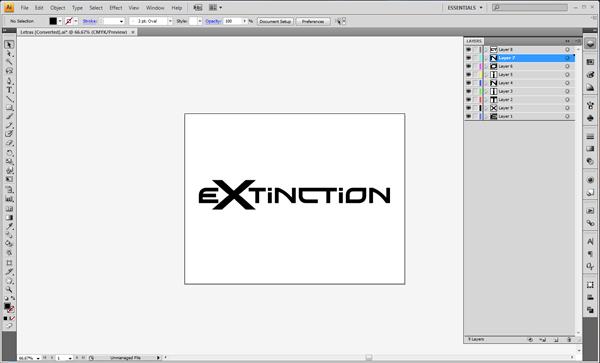
Reader Tutorial: Extinction

Step 2

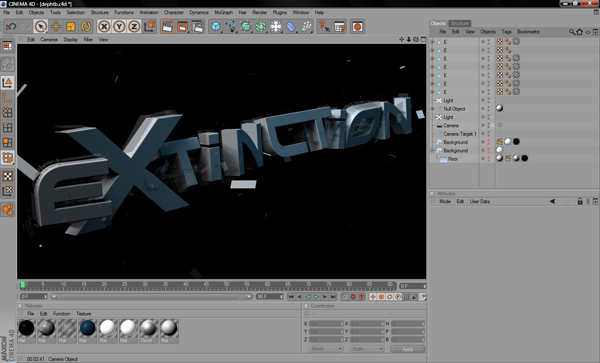
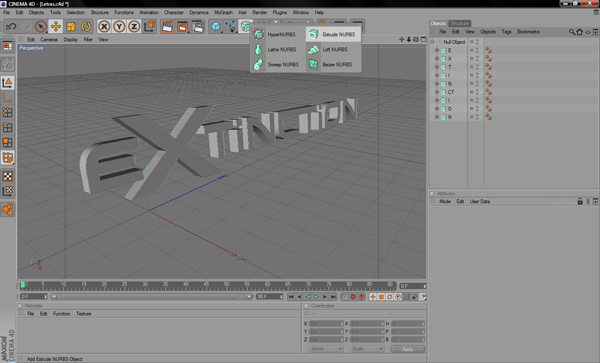
Go to Cinema 4D and open your Illustrator file, when you open it in Cinema 4D you can see that it is inside of a group. You need to ungroup them and add the extrude NURBS to each letter of your word. Then when you have each letter with extrude you need to add lights (I used 2 area lights, in the front and the left side) and target camera (optional, you can use whatever you want).
Step 3

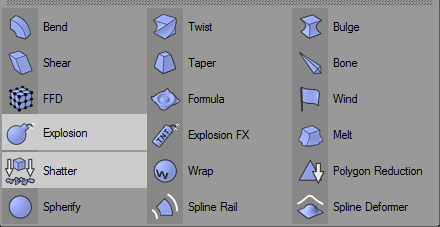
Well, we have our 3D text and we need to add more details before we go over to Photoshop. We're going to duplicate our 3D object 8 times to make it editable and we are going to add explosion and shatter. You need to play with the settings to see how you want your 3D text to look like. Just apply 3 explosions and 3 shatters to it and make a preview, you will see where to add more details and where not to.
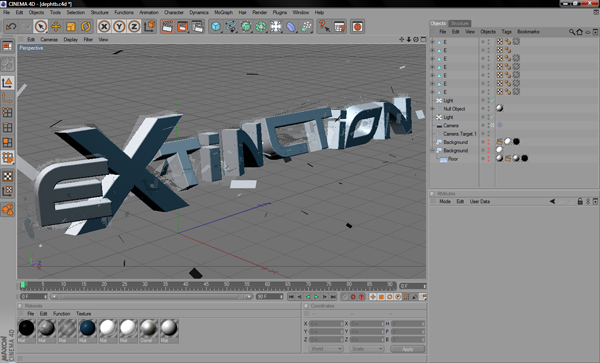
Reader Tutorial: Extinction

Step 4

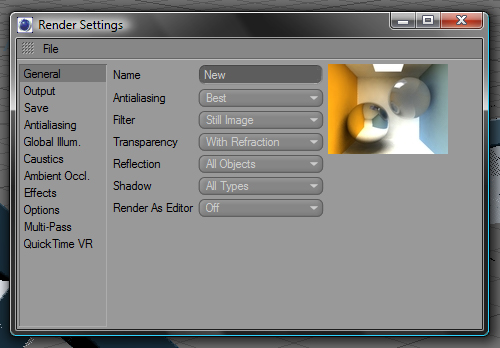
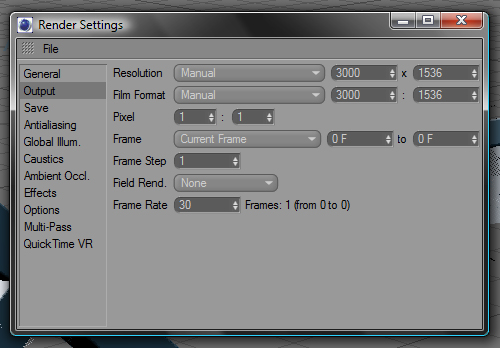
Go to render settings and put these following settings. Make the render and save in 300 DPI TIFF format with Alpha Channel.
Reader Tutorial: Extinction

Step 5

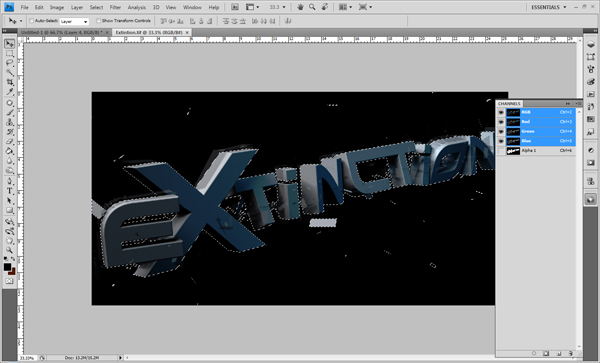
Take the render into Photoshop, go to the Channels windows and choose the Alpha Channel. Make your selection, cut your 3D text and paste it in another layer. Then you can work just with your 3D text and after, with your background.
Step 6

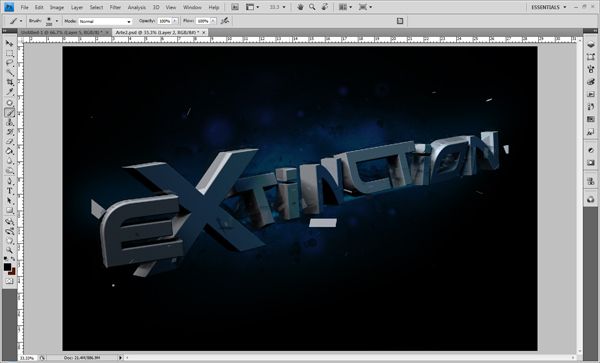
We're going to create the background and paint some areas with dark blue. I used the basic soft brush and 50% opacity to achieve the effect that I wanted.
Step 7

Now we're going to add more details to the background and we also need to create some highlights behind the 3D text to make it stand out.
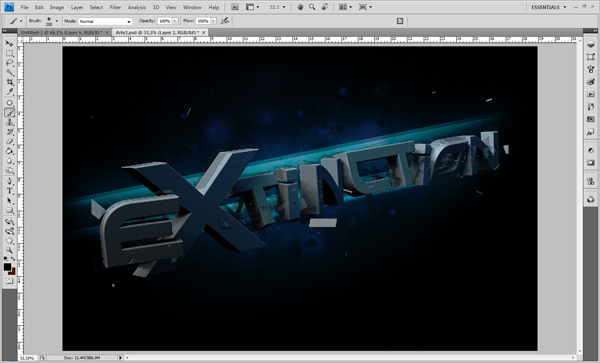
Step 8

Time to add some color to our 3D text. You can do this in different ways. I just used the basic soft brush and painted over the 3D letter and made some masks.
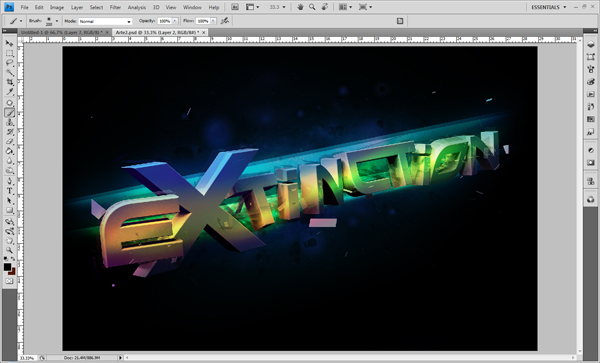
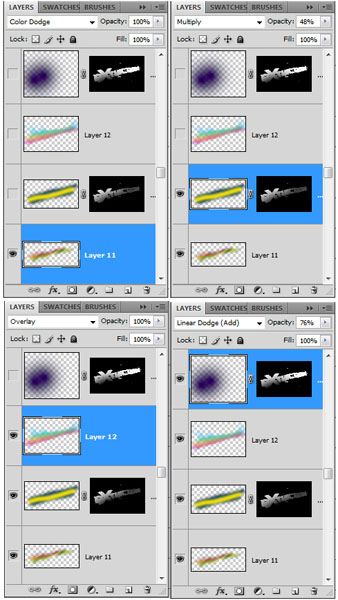
Step 9

We need to do a special effect to apply in front of our 3D letters. To do this, choose the Gradient Tool and change the mode to Difference. Make gradients in different directions. After, select the text and make a layer mask in this effect layer. Change the blend mode to Soft Light and Opacity to 70%
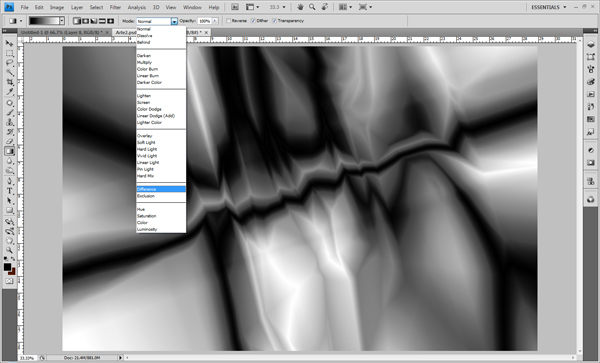
Step 10

Next, select the 3D text, go to Modify - Contract and use 10 to 20 pixels. Delete then deselect and go to Effects - Blur - Motion Blur use Angle: 15 and Distance between 60 to 70 pixels.
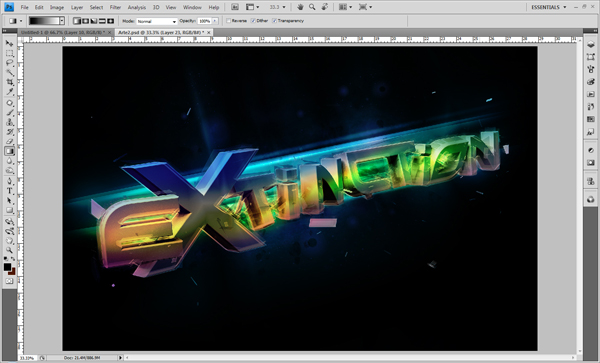
Step 11

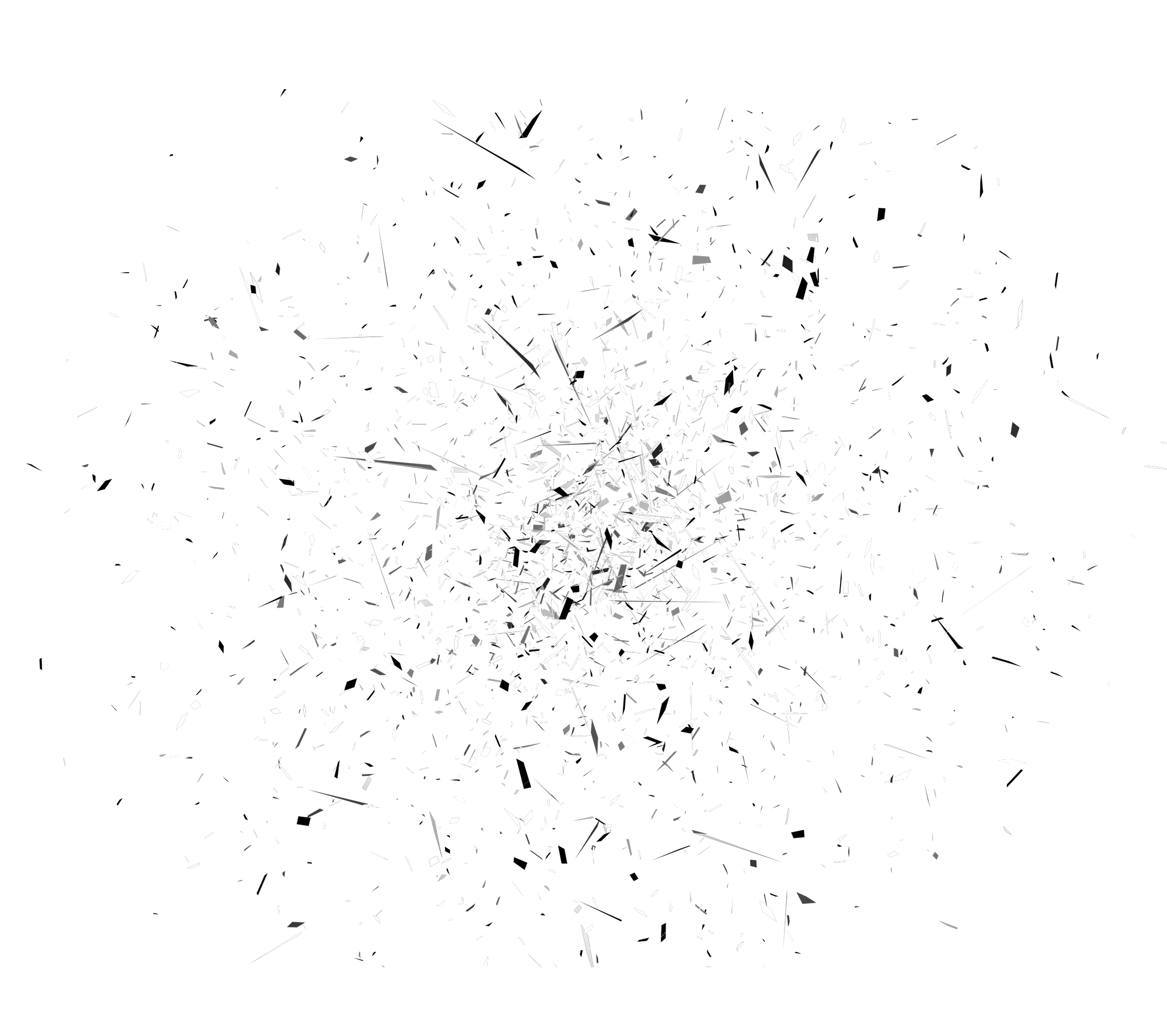
Now we'll add more detail to our 3D text. Choose a good splatter brush and paint wherever you want. To generate the back of the explosion you need to add broken glasses behind text. (http://psdtuts.s3.amazonaws.com/208_Break_Down/pieces.png). Add some highlights to make it stand out.
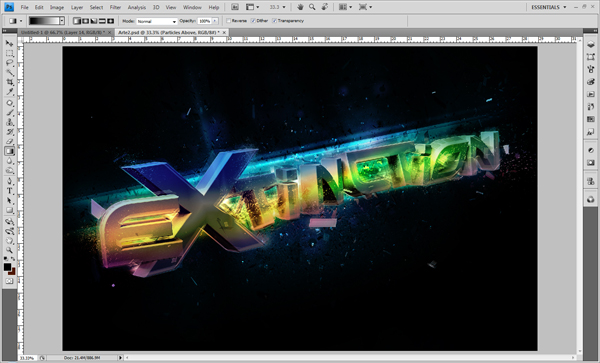
Step 12

Add some shadows inside of the 3D text with the Polygonal Lasso Tool and the Gradient Tool in Black to Transparent.
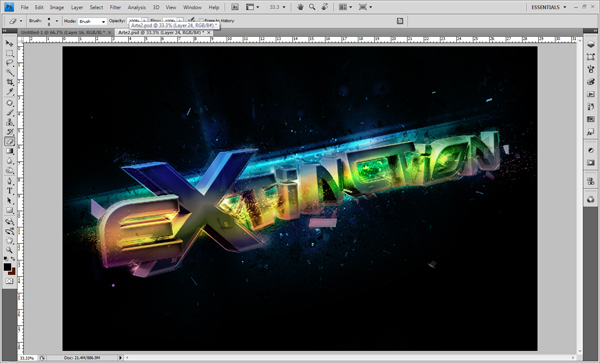
Step 13

Now add some crack brushes in the 3D text to make the explosion more real. Put a crack on the letter you want to brake, in my case, the x.
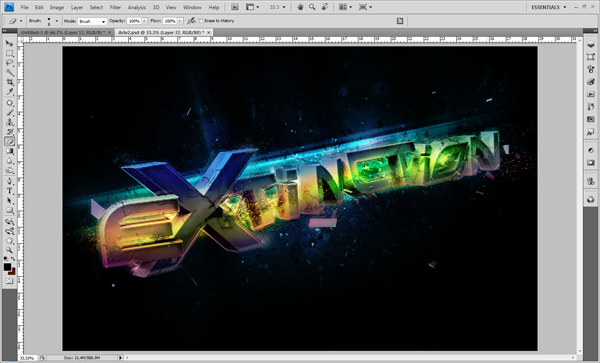
Step 14

Add highlights on the border of each letter to give it a real explosion feeling. To create the beginning of the explosion add a mini explosion brush to the inside corner of the x.
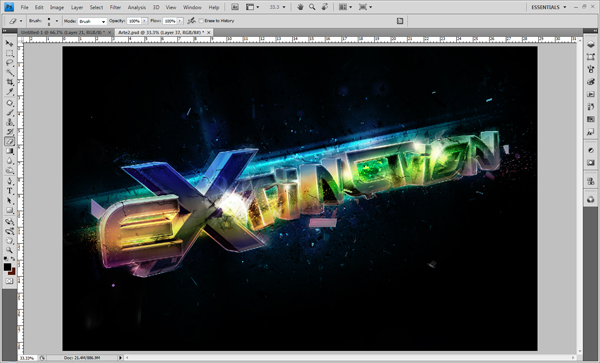
Step 15

Make some lines and flares in the explosion point in different ways. Use different colors to give it a great look.
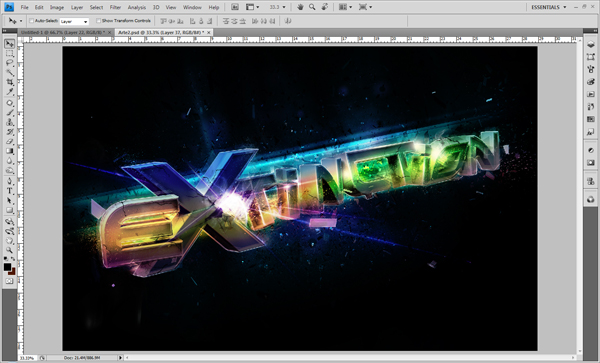
Step 16

Add the broken glass image on top of your 3D text and change the Blend Mode to Overlay. Duplicate it, go to Edit - Transform - Flip Horizontal and change the Blend Mode to Normal.
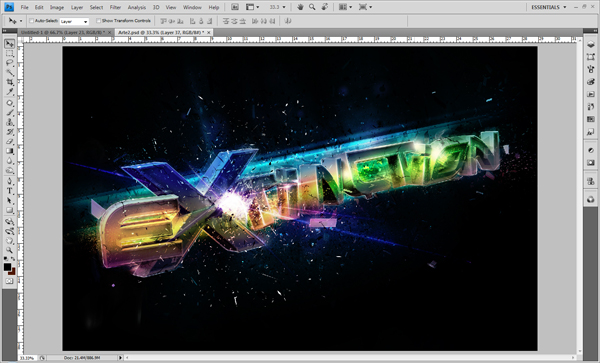
FINAL

This is the final image. Hope you enjoyed this tutorial!

About the author

User picture

My name is Fabio Sasso, I'm a graphic/web designer from Porto Alegre, Brazil and I'm the founder of Abduzeedo. I hope we can share lots of information, tips, and ideas through Abduzeedo. Also you can follow me on Twitter or my personal site at http://fabiosasso.com.

Sponsored Links:

Help us to share this!

65 Comments

DesignTuts10/19/2009

Nice... Awsome Post!

www.designtuts.com.br

Paja10/19/2009

Cool ! :)

jeinst10/19/2009

great job buddy.......thanks for the tuto...

Markus J Nielsen10/19/2009

Really nice.. It looks very pro :-)

Hybrid5910/19/2009

Wow one of the best tuts in abduzeedo i think !

------------------------------------------------------------------

http://hybrid-creation.deviantart.com/

late_cow10/19/2009

great work!
__________
http://lateant.deviantart.com/

Mandinho10/19/2009

Deusulivre! Ficou muito massa

koekks10/19/2009

sick, f*ckin SICK!!!

Anonymous11/07/2009

you sick

Sanne Terpstra10/19/2009

Nice tutorial! Few steps, great effect (Y)

Augustin10/19/2009

Wooow! Verry verry nice! I think i'm going to buy Cinema4D! It's just great!! Sick tutorial

Slizzie10/19/2009

Cool effects man, thanks

Newgate10/19/2009

Absolument magnifique !
ça c'est du savoir-faire =3

Anonymous10/19/2009

Not very detailed at all.

Pixsul10/19/2009

Just a quick question that wasn't made clear...for the final render out of cinema 4d. did you use global illumination/ambient occlusion or did you use Vray?

Anonymous10/19/2009

Very nice job, thx for the sharing

An1ken10/19/2009

Nice effect, Keep up the great work.

wien10/19/2009

good work, thanks

ITALO10/19/2009

Mt bom.

Vou esperar em portugues.

Anonymous10/19/2009

Horrible. You stink.

Plasma_Wolf10/19/2009

Very nice, that image looks awesome!

Jad Graphics10/19/2009

Just when I was looking for a great tutorial on Cinema4d mixed with Photoshop, then this came along. Thanks!

ThomasV10/19/2009

nice and useful

Raineshine10/19/2009

awesome tutorial. it made me wish I had cinema 4D

Anonymous10/19/2009

I saw this tuts first @ Deviantart.com and asked him for a Tut thinking he would never do it. and well few days later he sent me a message saying he had done the tut.

glad he did. BIG THANK YOU TO HIM!!!

mug2510/19/2009

Nice tut.

BTW you do NOT have to ungroup each spline add an extrude nurbs to each individual spline. You can place all of the splines within a group inside of the Extrude NURB modifier and check "Hierarchial" box under the "Object" tab for the Extrude NURBS modifier.

Hakan Nural10/19/2009

great tut. Very nice effect. Thanks
_________________

http://texturezine.com/

iseedeadpixels10/19/2009

Awesome! This is very helpful, thank you very much for this!

visualmotion10/19/2009

woa! , like it!

SL05NED10/20/2009

Love ya
finally a C4D tutorial
:)

Jeremy Darko10/20/2009

That's awesome!

Anonymous10/20/2009

Can you post C4D files please.

Mehedi10/20/2009

Great tutorial, thank you

NINJA_4910/20/2009

amazing result! thanks for author's work!

lordCovenant10/20/2009

abducted!

Chanito1910/20/2009

Hi everybody

I am very grateful by your support and comments, sincerely I'm grateful. If someone has some question about of the tutorial or some step, you can write to me to my mail and I will answer any doubt of it.

Regards and once again thank you very much to all.

My email is: chanito_19@yahoo.com

Lars Monsen10/20/2009

Incredible final resault, but one of the worst written tuts i've seen.

Andi C.10/20/2009

This is a wonderful and very helpful tutorial. Keep em coming!

-Andy from Megastarmedia

mike' ony10/21/2009

I love this Teutorial He convince me to Buy this C4d.. I love this Software i Wish I have It Someday... THANK"S...

Swiss10/21/2009

This makes me wish I had Cinema 4D.......oh well I guess 3D max will have to do.

labaidai10/26/2009

Works great with Blender3D and Gimp, thanks a lot !!!!!

R310/29/2009

Could you upload psd and c4d file? I'm confused:(

xRommelx10/29/2009

really cool

lukavivid10/29/2009

amazing real time space structured explosion!

fantastic!

Akshay10/31/2009

awesome tuts...........dude ur tuts are very easy but........highly useful.................

mika11/03/2009

can't figure out step3, you duplicate each letter 8x and then?

tauseef11/03/2009

Can you do video tutorial on this one.

Chingiz11/03/2009

Cooooooooooooool I likeeeeeeeeeeeee

Anonymous11/03/2009

very niice... but why extinction

RYB STUDIO11/04/2009

Nice, Thanks

Biju Subhash11/04/2009

great tuts...
Thank you for sharing :D

The Pro Designer11/06/2009

This is so cool, i really am lovin this tut... I will give it a go...

Iris11/06/2009

Loved it!! Thanx for sharing :)

adobe basics11/07/2009

if you provide us psd then be very great any way very nice tut.

Guppinator11/07/2009

I think its a very good idea!
But a beginner cant follow you step for step... There are no details where we can find the different functions and so on.
But nice idea!! ;)

wolfy11/08/2009

Very Nice tutorial,
I tried to make it from your tutorial, but I didn't manage to make the same scene from Cinema 4D. I need more detail in this part.
Is it possible that you send me the cinema 4D project to try to follow this part ? (fgauharou@yahoo.fr)
The result is awesome !

windoe11/12/2009

fantastic typeface..give you five!

Anonymous11/12/2009

Hi!! Nice Tut! Prob is...how can I do step 2?? I never used Cinema 4D before and I don't know how to Emboss them :/ Can somebody help me? Any help would be appreciated... Would be awesome if a video is made :) Thanks again! and keep up that AWESOME work

Anonymous11/13/2009

where did you get the base font??

James Tryon11/14/2009

First off, you are truly gifted. Nice job on the final Image.

Now the mean part.
This has the be the worsted turtoal I have ever tried. If you can call it that.

I could only go threw step one with out look at other tutorials to find out how to do any of the steps your talking about.

I wanted this to be so cool, but i have now wasted 3 hours of my life just trying to do what your telling us to do.

Please redo this, so we all can try again. Or at lest add some more information to how you did each step.

I want to like this so much, but at this point it is truly poor.

Thanks and sorry for being that dick, but someone had to.

Alias11/14/2009

The final result looks absolutely amazing, but i think the tutorial is lacking in some detail in certain steps. It would be great to see a video tutorial of this process. Any chance you will or could do one?

Other than that it looks great.

Purell11/14/2009

dope shit !!!!
thx dude

nuky11/18/2009

so explotion....!
i hope i can.,,,

iJohan11/19/2009

Very awesome tut, i hope you can make a video tut of it cus i cant figure it out!! or some more detail :D

anyway, thanks for sharing!

J

Matusalem11/20/2009

o autor poderia colocar o projeto do Illustrator, do cinema 4D e do Photoshop para download, ou alguem que tenha feito, para que as pessoas como eu que estao começando a mexer com o cinema 4D possam ver como cada efeito foi usado, direitinho...

Post new comment

The content of this field is kept private and will not be shown publicly.

Icon Ads Wall

  • Openjobs - Oportunidades de Emprego para Profissionais de Talento
  • Zee - Irrezeestível Design Digital
  • Tradd.us - Contextual Translator
  • DesignFlavr, Inspirational Art and Design served daily
  • Signalnoise.com | The art of James White
  • Alberto Seveso - Illustrator
  • Description: Award Winning Portfolio and blog of Web Developer Anthony Woods

Do you want to advertise here?